What is Cloud easyPOS?

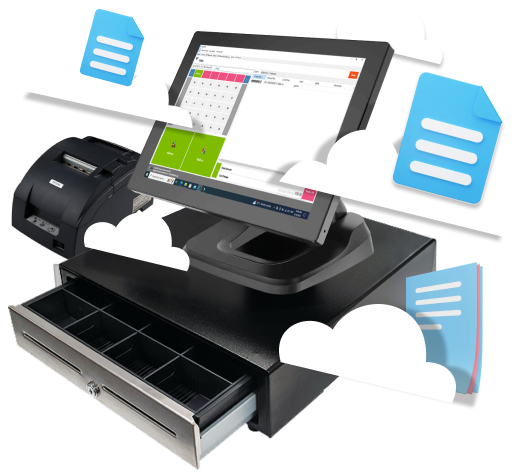
Cloud easyPOS is a cutting-edge, cloud-based point of sale system designed to boost operational efficiency for businesses by offering a unified platform for managing sales, inventory, and customer data. This subscription-based solution is crafted specifically for small to medium-sized enterprises (SMEs) looking for scalability and flexibility without the need for extensive IT infrastructure.


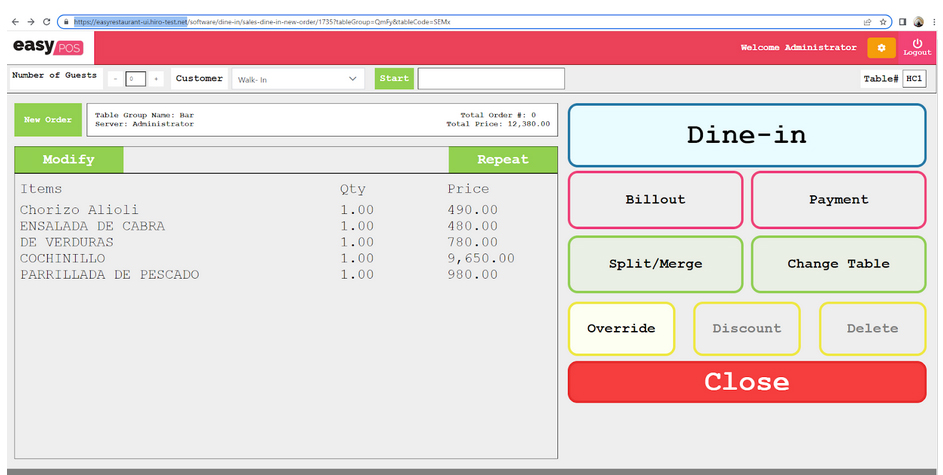
waiter holding tablet using Easy Restaurant taking orders

BIR-accredited: Cloud easyPOS is fully compliant with the Bureau of Internal Revenue (BIR) regulations, ensuring that your business adheres to all necessary financial guidelines and reporting requirements. This compliance includes the ability to generate necessary reports such as Z and X readings, eJournal, and eSales reports, keeping you prepared for audits and financial reviews without additional hassle.


waiter holding tablet using Easy Restaurant taking orders with happy customers

Robust Inventory Management: Our advanced inventory management tools are designed to provide precise control over your stock levels. Track your inventory in real-time, set up alerts for low stock, and analyze usage patterns to optimize your ordering process. These capabilities ensure that you can avoid overstocking or stockouts, maintaining efficient operations and satisfying customer demands consistently.


waiter holding tablet using Easy Restaurant taking orders, smooth transaction

Unlimited Flexibility: With Cloud easyPOS, your business can scale effortlessly. The system supports an unlimited number of users, menu items, groups, and discounts, providing you with the flexibility to expand your offerings and customize your services without software limitations. This makes it ideal for businesses experiencing growth or those with varied and dynamic product lines.


waiters using easyrestaurant

Seamless Integration: Cloud easyPOS offers a streamlined workflow where data is automatically consolidated into easyFS, ensuring all your sales and inventory information is synchronized in real-time. This integration facilitates a unified view of business operations, reducing errors and increasing operational efficiency across platforms.


Are You Ready for Cloud easyPOS?

Cloud easyPOS stands out as a versatile, efficient, and regulatory compliant cloud-based POS system, perfect for businesses looking to optimize their operations and enhance customer satisfaction through technological integration and advanced management capabilities.

FAQ

What is Cloud easyPOS?

Cloud easyPOS is a BIR-accredited point of sale (POS) system designed for small and medium-sized businesses in the Philippines. It’s a complete sales and inventory system that can help you manage your business more efficiently.

What kind of businesses is Cloud easyPOS suitable for?

Cloud easyPOS is suitable for a wide range of businesses, including groceries, convenience stores, pharmacies, and restaurants. If you need a reliable and efficient POS system to manage your sales and inventory, Cloud easyPOS is a great option.

What makes Cloud easyPOS different from other POS systems?

Cloud easyPOS is different because it’s BIR-accredited, which means that it complies with all the regulations and requirements set by the BIR. It also offers advanced features like sales and inventory management, customizable restaurant setups, and multiple user interfaces. Plus, it’s easy to use and highly customizable to suit your specific needs.

Can Cloud easyPOS generate BIR reports?

Yes, Cloud easyPOS can generate various BIR reports, including Z and X-readings, eJournal Report, eSales Report, and other reports required by the BIR. This ensures that your business is always compliant with the latest regulations and helps you avoid penalties and fines.

Does Cloud easyPOS offer different pricing levels?

Yes, Cloud easyPOS offers unlimited and multiple price levels, so you can offer different prices for different customers or products. This can help you increase sales and revenue by targeting specific customer segments or products.

Does Cloud easyPOS support multiple users?

Yes, Cloud easyPOS allows multiple users to access the system with ordering capability for pharmacies and restaurants. This means that you can assign different roles to your staff, giving them access to the system based on their specific job requirements.

Is there a mobile app for Cloud easyPOS?

Cloud easyPOS offers easyRestaurant, a browser-based POS that connects mobile devices like tablets and smartphones to the BIR-accredited Cloud easyPOS software in the back end. This allows you to manage your restaurant’s front end with ease, whether you’re on the go or at the restaurant.

Can we buy the software alone?

Yes, we have software+hardware package or you can buy both only software from us.

Can work online or offline?

Cloud easyPOS is an on-premise software, but it is integrated to easyFS (Cloud-based accounting system) to consolidate all data in realtime.

Possible to integrate with our existing accounting system?

It depends, we will be needing technical data to check and verify for the integration process.

How to set up the Cloud easyPOS system according to your business operation?

– By tapping the settings module
– Tapping on POS Information Tab and selecting the POS Type either Barcode, Quick Service or Touch

How to manage your Sales and Inventories efficiently?

By accessing the Inventory Report Module

How to set up your item print outs to the kitchen printers?

– By tapping the small two lines located on the upper right corner of the Cloud easyPOS system
– Then tapping on Restaurant
– Then Item Group
– Edit the specific Item Group and set which kitchen printer you want those items under that item group to be printed

How to set up your item?

– By tapping on the Item module
– Then click add and fill out the necessary details needed like barcode, item description, cost, price etc.

How to set up different currencies in the Cloud easyPOS system?

– By tapping on the small two lines located on the upper right corner of the Cloud easyPOS system
– Then tap on Setup
– Tap on Currency
– Tap on add and fill out the currency’s alias, currency name & currency sign

How to set up your customers?

– Tap on the customer module and then click/tap add – Input the necessary information like customer name, customer code, contact person etc.

How to set up your suppliers?

– Tap on the supplier module and then click/tap add
– Input the necessary information supplier name, address, fax no. etc.

How to set up user accounts according to what type of activities a user can do/access?

– By tapping/clicking on the User Module and then click add
– Then input the full name of the user, username, password and then copy or add the specific rights/access

How to stock item inventories efficiently?

– By tapping/clicking on the stock in module
– Then tap/click on add
– Input the name of the items and its quantity

How to know if there are discrepancies in your inventory?

– By tapping on the stock count module
– Then tap/click on the add button
– Input the item and the physical quantity then lock to save.

How to keep track of all of your stocked-out item inventories for that certain period of time?

– By accessing the Inventory Report Module
– Then select Stock Out Detail Report

How to keep track of all of your stocked-in item inventories for that certain period of time?

– By accessing Inventory Report Module
– Then select Stock-in Detail Report

How to keep track of the movements of your item’s inventory?

– By accessing the Inventory Report
– Then select Stock Card

How to generate item expiry reports?

– By accessing the Inventory Report
– Then select Item Expiry Report

How to add mode of payments?

– By going to System Tables Module
– Then tap/click on Paytype Tab
– Click on add to setup the additional mode of payment

How to generate your list of items recorded in the Cloud easyPOS system?

– By accessing the Inventory Report
– Then select Item List Report and the tap the view button
– Tap on the csv button to export it to excel file

How to set up your tables according to your table’s groupings in your store?

– By tapping on the small 2 lines located on the upper right corner of the Cloud easyPOS system
– Then select Table group and tap/click add

How to add your preferred discounts for your transactions in the Cloud EasyPOS system?

– By accessing the Discount Module
– Then click add to setup the add and set up the additional discount

How to set your discount’s time availability schedule?

– By accessing the Discount Module
– Edit a specific discount
– Then check the check box if you want to set it up in Date Scheduled, Day Scheduled or Time Scheduled

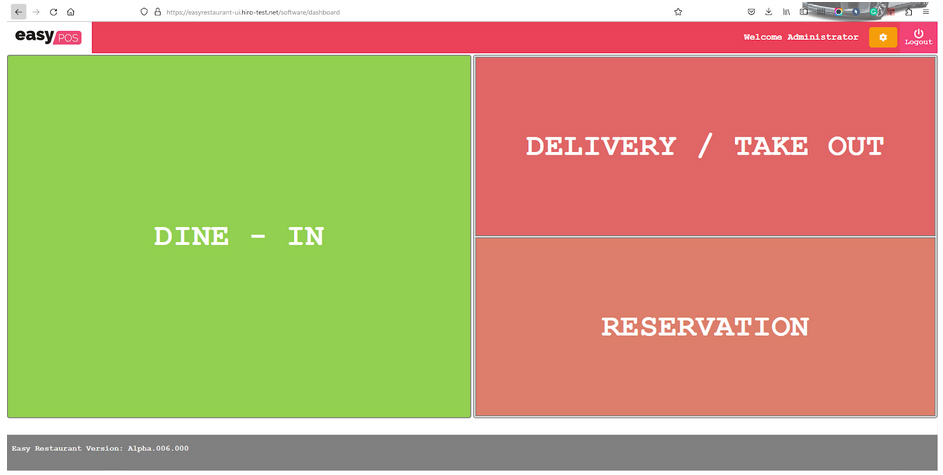
How to take orders from the customer using the system?

– By accessing the POS Module
– Tapping on Sales for barcode setup
– Tapping on the Table for touch setup
– Tapping on walk-in for quick service setup

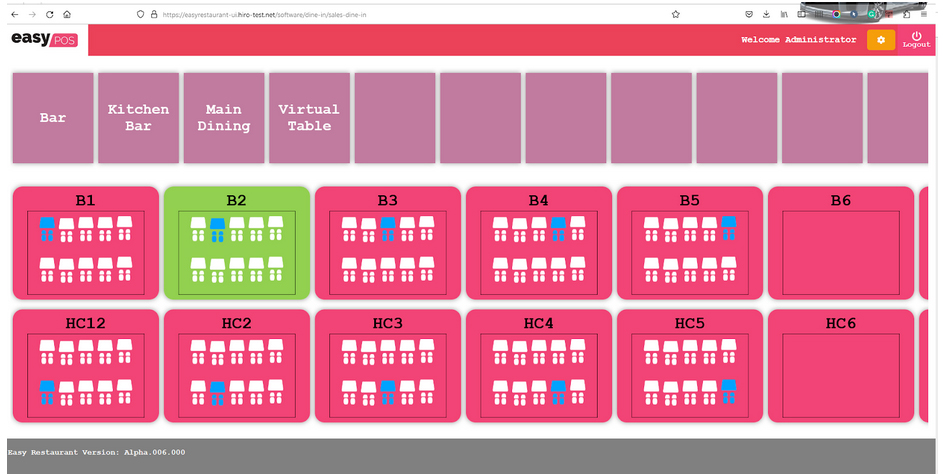
How to make a Dine-in transaction?

– Access the POS module
– Select the table where the customer will be seated.
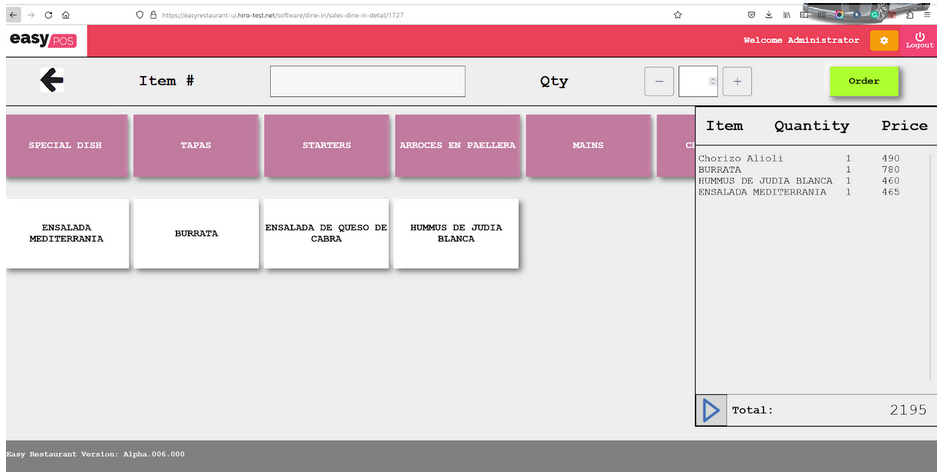
– Punched in the ordered items
– Press the Lock button to print the order slip

How to make a Take-out transaction?

– Access the POS module
– Tap on Walk-In button
– Punched in the ordered items
– Press the Lock button to print the order slip

How to make a Delivery transaction?

– Access the POS module
– Tap on Delivery button
– Tag the name of the customer
– Punched in the ordered items
– Press the locked button to print the order slip

How to give a discount for the whole transaction?

– After punching the ordered items tap on the Discount button
– Select which of the discounts you wanted to give in that transaction.
– Enter the necessary detail/information if the discount requires it like Senior Citizen, PWD discount etc

How to Transact a Senior Citizen Discounting?

– Punched in the ordered items
– Tap on Discount button
– Select Senior Discount
– Input the SC ID, SC Name and Age
– Also input how many person sitting in one table and how many senior in that table

How to Transact a PWD Discounting?

– Punched in the ordered items
– Tap on Discount button
– Select PWD Discount
– Input the PWD ID, PWD Name and PWD Age
– Also input how many person sitting in one table and how many person with disability in that table

How to do a return – refund process?

– Access POS module
– Tap on a table
– Tap on Return
– Pick the items that the customer wanted to have a refund
– Tap on refund and tap/click yes to confirm

How to do a return – exchange process?

– Access POS module – Tap on a table – Tap on Return – Select the item the customer wanted to replace that returned item – Tap on return and click yes to confirm

How to void transactions?

– Access the POS module – Select which transaction will be voided

How to print order slip?

After punching the ordered items in the Cloud easyPOS tap on lock to print the order slip

How to know if the item printed out to the kitchen printer is a Dine-in type of transaction?

A table number will reflect in the Order Slip

How to know if the items printed out to the kitchen printer is a Take-Out type of transaction?

A Walk-In will reflect in the Order Slip

How to know if the items printed out to the kitchen printer is a Delivery type of transaction?

The order type reflecting in the Order Slip is Delivery

Is it possible in Cloud easyPOS to have Kitchen Display setup instead of Kitchen printers?

Yes, it is possible.

How to generate a Bill-Out?

– After punching ordered items in a specific table, tap on the table once again
– Tap/click the Bill-out button to print

How to settle multiple payments transactions?

– After punching ordered item, tap/click the Tender button – Input the amount on the payment type – Hit tender and yes to print the Official Receipt

How to reprint an Official Receipt?

– Select and tap the settled transaction
– Tap on reprint button

How to set up your cashier’s beginning and ending balances for their shift?

– Access the Cash In/Out module
– Click add ( Debit for Beginning Balance and Credit for Ending Balance

What report Is needed to know whether the cashier is short/over with its ending balance?

– Access the Remittance Report Module
– Tap on Remittance Report
– Tag the user/cashier and tag the ending balance
– Tap on view

How to generate a top selling item report?

– Access the Sales Report Module
– Select Top Selling Item Report
– You can also filter it per category or all categories
– Click/tap view

How to know what items are being sold during a specific time?

– Access the Sales Report Module
– Select Hourly Top Selling Sales Report
– Set the time that you wanted to see
– Tap view

How to generate Monthly and Daily Net Sales Summary Report?

– Access the Sales Report Module
– Select and tap the Net Sales Summary Report – Monthly or Net Sales Summary Report – Daily

How to generate a discounted sales report?

– Access the Sales Report Module
– You can filter it per discount or all discounts

What is the difference between the Sales Summary and Collection Summary Report?

– Sales Summary are those sales made whether it was already collected or not
– Collection Summary are those sales that you have collected or settled

What report to generate for the canceled/voided transactions?

– Access the Sales Report Module
– Select and tap the Canceled Summary Report

What is the difference between the Z and X Reading?

– X Reading is a report that will be generated or covered the enter shift of a cashier or user
– Z reading is a report that will be submitted to the BIR. It covers the transactions made in one day or should I say end of day report.

How to generate your accounts receivable?

– Access Sales Report Module
– Select Account Receivable Report
– Tap on view

How to generate a Statement Of Account?

– Access Sales Report Module
– Select Statement of Account
– Tap/click view

How to keep track of your customer Rewards?

– Access the Sales Report Module
– Select Sales Summary Reward Report
– Tap view

How to generate sales reports for each item category?

– Access the Reports Module
– Select 80mm Item Sales Filtered By Category
– Filter it per category
– Tap on view

Book Your FREE Demo

* indicates required

Chat with HUMEDIT Easy Series

Typically replies within a few hours

Hi! How can we help you
AI Chat