2026/11/05
Not everyone should see everything. Set rights per user and limit screens and branches.
In a small team, everybody sees everything. As the business grows, that stops being comfortable. A cashier does not need payroll-level financial reports, and a branch clerk does not need other branches’ figures.
The risk of open access
Broad access makes mistakes more likely and makes it harder to say who is responsible. It also exposes sensitive figures to people who have no need to see them.
Rights per user
In easyFS you set rights for each user to limit which screens and branches they can use:
- Per-user rights: decide what each person can open and do.
- Copy rights between users: set up a new user quickly by copying the rights of someone with the same role.
- Limit by screen and branch: a branch user sees the branch’s work, not the whole company.
Easier onboarding and offboarding
Copying rights saves time when new staff join, and keeps roles consistent. When someone changes role, you adjust their rights in one place.
An illustrative scenario
A growing retailer hires a new branch accountant. In a shared login or an open system, the new hire can see the owner’s salary expenses and every other branch’s results on the first day. Even if the person is trustworthy, the company has taken a risk it did not need to take.
By copying the rights of an existing branch accountant and limiting the new user to that branch, the administrator sets up the account in minutes. The new user can work immediately and see only what the role requires.
Principles for assigning rights
- Least access needed. Start with the minimum and add rights when there is a clear need.
- One person, one login. Shared logins make it impossible to know who did what.
- Review when roles change. Promotions and transfers should trigger a review of access.
- Remove access promptly. When someone leaves, their rights should end the same day.
Access control is the foundation for the other protections. Locks and audit trails are most meaningful when you also know who is allowed to act, and who is not.
Works with your other controls
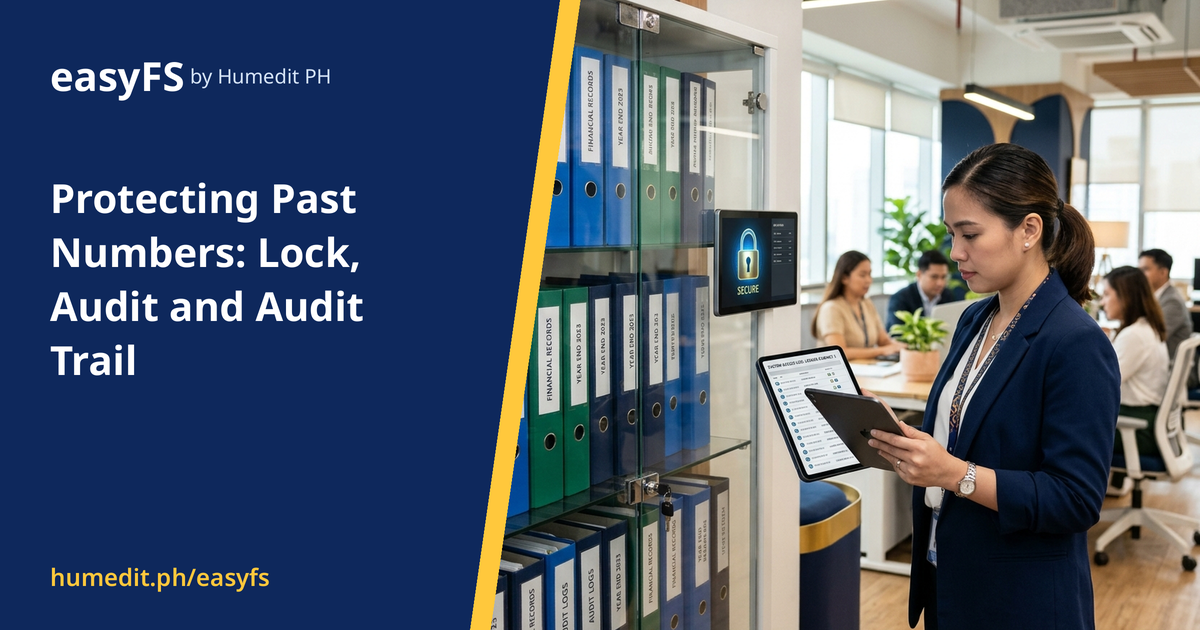
Access rights work alongside Lock/Unlock and the Audit Trail: restrict who can change records, then keep a history of what was done. easyFS is cloud-based, so rights apply wherever your people sign in from.
Frequently asked questions
Can I set up a new user quickly? Yes. You can copy the rights of an existing user with the same role and adjust where needed.
Can I restrict a user to one branch? Yes. Rights can limit the screens and branches a user can access.
What should I do when someone leaves? Remove or adjust their rights right away, in one place.
Want to see it in action? Message us for a free demo at humedit.ph/easyfs, or contact Sales: +63 917 628 0355 / hiisales@humedit.ph.