Search User Manual

I: Introduction

1.1 Overview

1.2 EasyFS Process

1.3 Purpose of this User Manual

1.4 Who Should Use This Manual

1.4 Best Practices and System Limitations

1.4.1 Setting up the Master Files

1.4.2 Internet Connection

1.4.3 Device Shutdown

II. Version History

2.1 Overview

2.2 Gamma.003.001

2.3 Gamma.004.003

2.4 Gamma.004.004

2.5 Gamma.004.004

2.6 Gamma.004.004

2.7 Gamma.004.005

III: Getting Started

3.1 Introduction

3.2 Accessing EasyFS

3.2.1 Logging In

3.2.2 Forgot Password

3.2.3 The Dashboard Page

3.2.4 Navigating EasyFS

IV: Master Files

4.0 Overview

4.1 Setup Master Files

4.1.1 Item

4.1.1.1 How to Add an Item Manually

Unit Conversion

Price

General Ledger Accounts

Save and Lock

4.1.1.2 Add Item Via Import Function

4.1.2 Customer

4.1.2.1 Add Customer Manually

4.1.2.2 Add Customer Via Import Function

4.1.3 Supplier

4.1.3.1 Add Supplier Manually

4.1.3.2 Add Supplier Via Import Function

4.1.4 Company

Company List

Company Detail

4.1.5 Users

Users List

List of All Users that were added to the System

Users Detail

4.1.6 Chart of Accounts

4.1.6.1 Chart of Accounts Lists

4.1.6.2 Manual Add Chart of Accounts

4.1.6.2 Add Chart of Accounts via Upload Account

4.1.7 Bank

4.1.7.1 Bank List

4.1.7.2 Manual Add of Bank

4.1.8 Currency

4.1.8.1 Currency List

4.1.8.2 Manual Add of Currency

4.2 Update Master Files

4.2.1 Item

4.2.1.1 Manual Update Item Detail

4.2.1.2 Update Item Detail in Bulk

4.2.2 Supplier

4.2.2.1 Manual Update Supplier Detail

4.2.2.1 Update Supplier Detail in Bulk

4.2.3 Customer

4.2.3.1 Manual Update Customer Detail

4.2.3.1 Update Customer Detail in Bulk

V: Transactions

5.1 Overview

5.2 Purchases Transaction Module

5.2.1 Purchase Request

Overview

Purchase Request List

Purchase Request Detail

Cancel Purchase Request Transaction

5.2.2 Purchase Order

Overview

Purchase Order List

Purchase Order Detail

Purchase Order Transaction via Upload Template

Cancel Purchase Order Transaction

5.2.3 Receiving Receipt

Overview

Receiving Receipt Detail

Receiving Receipt List

Cancel Receiving Receipt Transaction

5.2.4 Disbursement

Overview

Disbursement List

Disbursement Detail

Cancel Disbursement Transaction

5.2.5 Debit Memo

Debit Memo List

Debit Memo Detail

Debit Memo Transaction via Upload Template

Cancel Debit Memo Transaction

5.3 Sales Transaction Module

5.3.1 Sales Order

Overview

Sales Order List

Sales Order Detail

Sales Order Transaction via Upload Template

Cancel Sales Order Transaction

5.3.2 Sales Invoice

Overview

Sales Invoice List

Sales Invoice Detail

Sales Invoice Transaction via Upload Template

Cancel Sales Invoice Transaction

5.3.3 Collection

Overview

Collection List

Collection Detail

Collection Transaction via Upload Template

Cancel Collection Transaction

Overview

Scenario 1: Single  Branch

Item Creation/Management

Purchase Order

Receiving Receipt

Sales Invoice

Inventory Report

Scenario 2: Multi-Branch

Item Creation/Management

Stock Transfer Request

Stock Transfer

Sales Invoice

Inventory Report

Scenario 3: Extra-Ordinary Activities

Extraordinary Stock In

Extraordinary Stock Out

Scenario 4: Multi-Branch with EasyPOS Integration

Item Creation/Management

Supplier Creation/Management

Customer Creation/Management

Purchase Order

Receiving Receipt

Sales (easyPOS)

Official Receipt (easyPOS)

POS Apps (easyFS)

Sales Invoice

Collection/ Payment

Inventory Report

5.4.1 Stock In

Overview

Stock In List

Stock In Detail

Customer Return via Stock In

5.4.2 Stock Out

Overview

Stock Out List

Stock Out Detail

Supplier Return via Stock Out

5.5 Stock Transfer Request

Overview

Stock Transfer Request List

Stock Transfer Request Detail

5.6 Stock Transfer

Overview

Stock Transfer List

Stock Transfer Detail

5.7 Stock Withdrawal

Stock Withdrawal List

Stock Withdrawal Detail

5.8 Stock Count

Stock Count List

Stock Count Detail

5.9  Inventory Ledger

Inventory Ledger List

Inventory Ledger Detail

6.0: Financials Transactions

7.2 Bank Reconciliation

Bank Reconciliation Detail

7.3 Journal Voucher

Overview

Journal Voucher List

Journal Voucher Detail

Reports

Accounts Payable Reports

Accounts Payable Report

Accounts Payable Voucher Report

Accounts Payable By Currency Report

Purchase Request Summary Report

Purchase Request Detail Report

Purchase Order Summary Report

Purchase Order Detail Report

Purchase Order Detail With Balance Report

Receiving Receipt Summary Report

Receiving Receipt Detail Report

Disbursement Summary

Disbursement Detail Report

Print or Download the PDF Report

Debit Memo Summary Report

Debit Memo Detail Report

Supplier Journal

Supplier Item Report

Available Item Per Batch Report

Top Purchased Item Report

Top Supplier Report

Cancelled Purchase Request Report

Cancelled Purchase Order Report

Cancelled Receiving Receipt Report

Accounts Receivable Report

Accounts Receivable Summary Report

Accounts Receivable by Term Report

Accounts Receivable by Currency Report

Accounts Receivable Report (One Month)

Statement of Account

Statement of Account (By Date Range)

Statement of Account By Term

Counter Receipt

Customer Advances

Sales Order Summary Report

Sales Order Detail Report

Sales Invoice Summary Report

Sales Invoice Detail Report

Collection Summary Report

Collection Summary by PayType Report

Collection Detail Report

Customer Journal

Sold Item Per Batch Report

Top Selling Item

Top Selling Branch

Cancelled Sales Order Report

Cancelled Sales Invoice Report

Cancelled Collection Report

Credit Memo Summary Report

Credit Memo Detail Report

Sales Invoice Detail Report with Cost

Financial Reports

General Ledger

Trial Balance

Balance Sheet

Account Ledger

Disbalance Journal Entries

Income Statement

Cash Flow Statement

Chart of Accounts

Top Expenses

Top Income

Receiving Receipt Book

Disbursement Book

Debit Memo Book

Sales Invoice Book

Collection Book

Credit Memo Book

Journal Voucher Book

Inventory Ledger Book

Inventory Report

Inventory Report Per Item

Stock In Detailed Report

Stock Out Detailed Report

Stock Transfer Detailed Report

Stock Count Detailed Report

Physical Count Sheet

Top Item Inventory Onhand

Top Moving Item

Stock Card

Check Warehousing Report

PDC Summary Report

Bounced Check Report

PDC Cleared Report

PDC Uncleared Report

Budget Reports

Report Budget

Report CashFlow Projection

Fixed Asset Reports

Fixed Asset Detail Report

Asset Disposal Summary Report

Asset Disposal Detail Report

BIR CAS Reports

General Journal

General Ledger

Sales Journal

Cash Receipt Journal

Purchase Journal

Cash Disbursement Journal

Inventory Ledger Journal

Form 2306

Form 2307

Form 0619 - E

Form 0619 - F

Form 1601 - FQ

Form 1601 - EQ

Form 1604 - E

Form 1604 - F

Form 1702 - Q

Form 1702 - RT

Form 2550 - M

Form 2550 - Q

VIII : Check Warehousing

8.1 Check Warehousing

Check Warehousing List

Check Warehousing Detail

8.2 Check Writer

Check Writer Detail

IX : Budget

9.0 Overview

9.1 Budget Manager

Budget Manager List

Budget Manager Detail

Cash Flow Projection Detail

X : Fixed Asset

10.0 Overview

Fixed Asset List

10.2 Asset Disposal

Asset Disposal List

Asset Disposal Detail

XI : Apps

11.0 Overview

11.1 Price

11.1.1 Overview

11.1.2 How to Setup a Price

XII : System

12.0 Overview

XIII: Integration

13.1 Overview

13.1.1 Benefits of Integration

13.2 Types of Integration

13.2.1 EasyPOS Integration Overview

Benefits:

13.3 How to Set Up Integrations

13.3.1 EasyPOS Integration

13.4 Managing Integrations

13.4.1 EasyPOS Integration

13.5 Guidelines for Integrations: Do’s and Don'ts

13.5.1 EasyPOS Integration

IX: Definition of Terms

X: FAQ

.toc-wrapper .c27{margin-left: 6pt}.toc-wrapper .c46{margin-left:14pt}.toc-wrapper .c46 .c14 a,.toc-wrapper .c50 a{font-size:13px}.toc-wrapper .c50{margin-left:18pt;} .manual-content table td, .manual-content table th{padding:0;border: 1px #aaa solid;padding: 10px;} .manual-content table td span,.manual-content table td p,.manual-content table td li{font-size:11px!important;}

4.1.6 Chart of Accounts

  • Establish a chart of accounts, which is a structured list of all accounts used by the organization.

  • Categorize accounts based on assets, liabilities, equity, income, and expenses.

Note: An Accountant can advise what will be the best suited Chart of Accounts for your type of business.

4.1.6.1 Chart of Accounts Lists

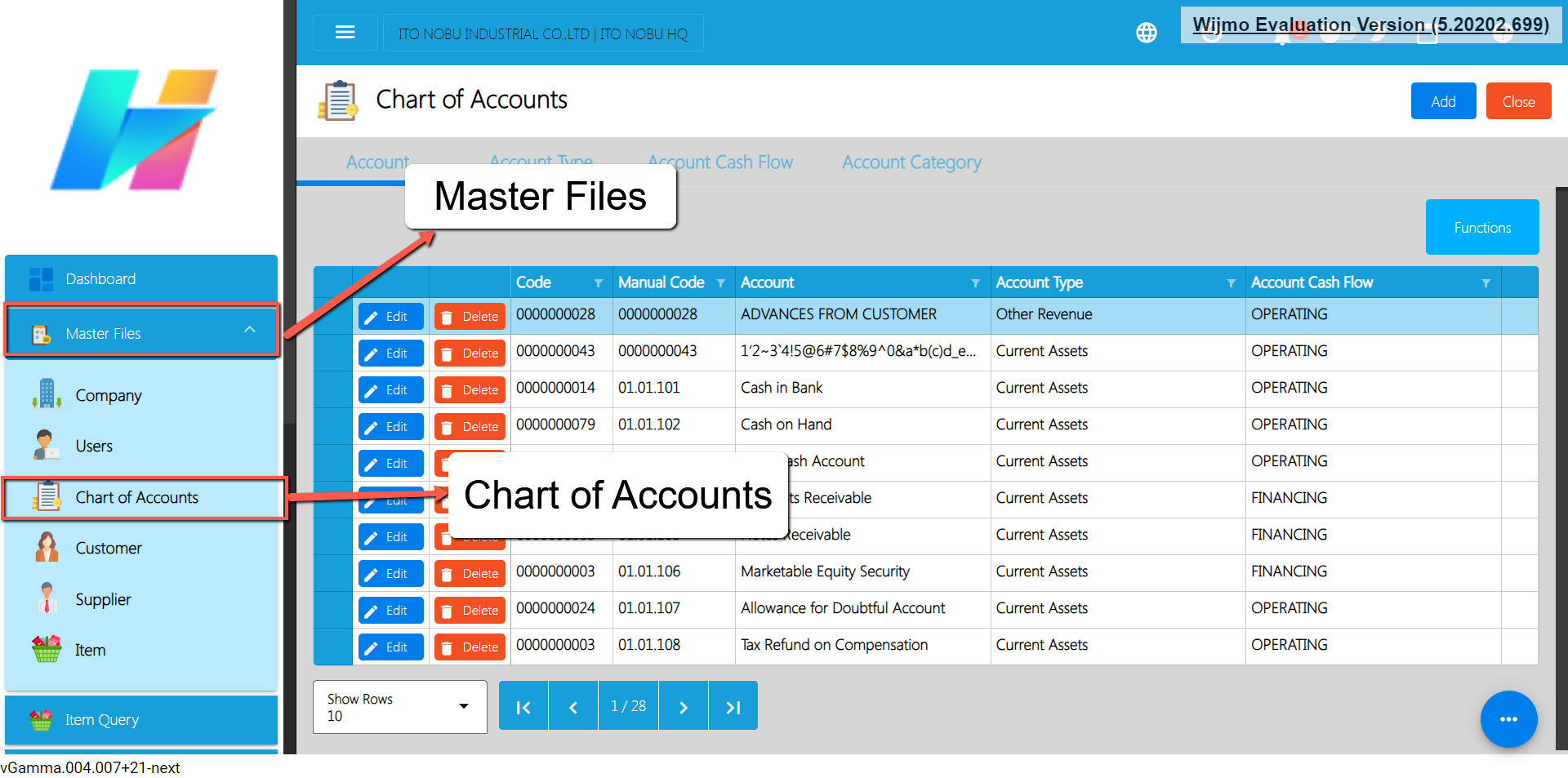
  • List of All Accounts that were added to the System
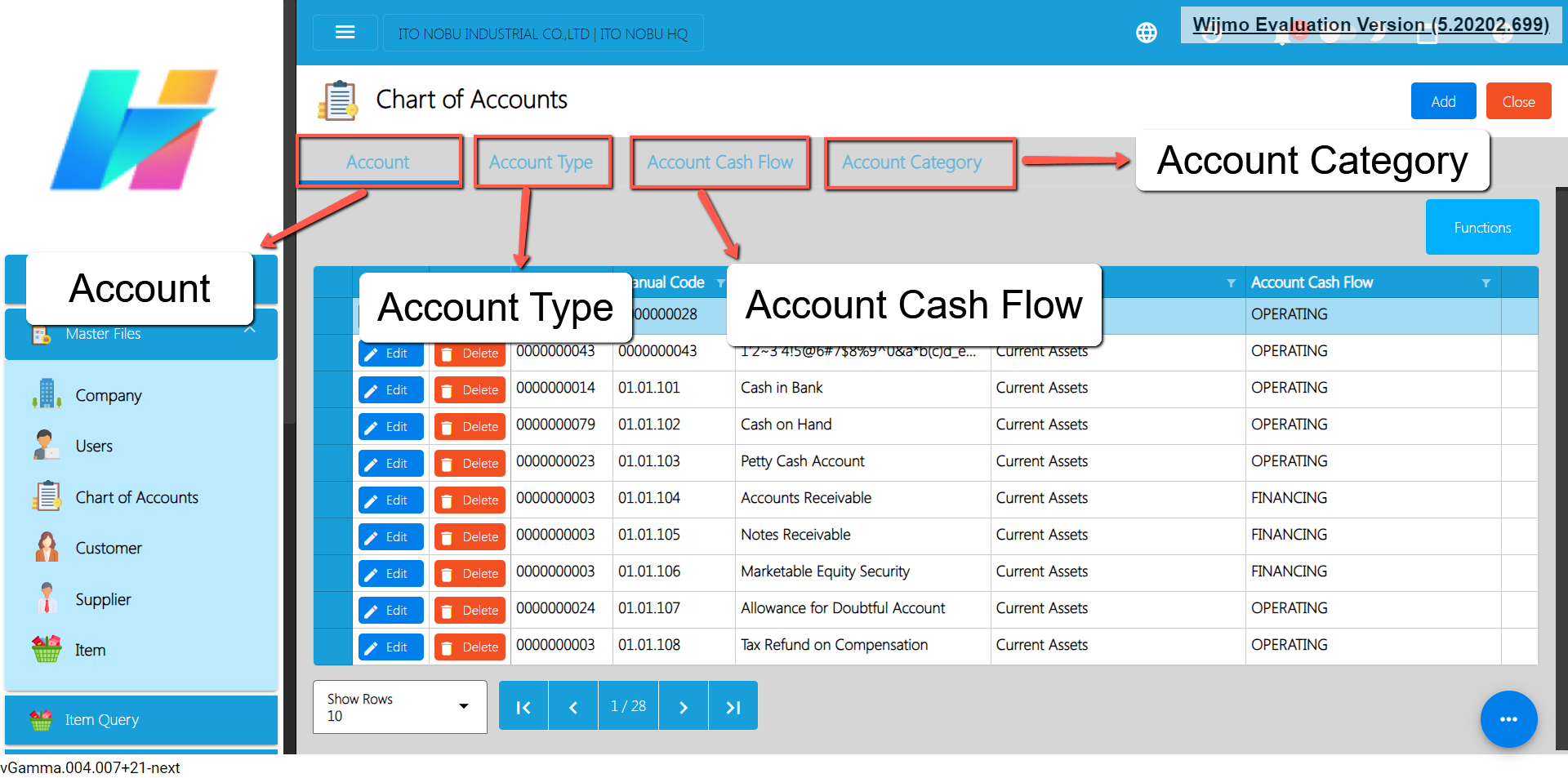
  • Here the user can choose what Account they want to set up for them to use in their transactions, there are the tabs:
  • Account – This is the name of the account used to record financial transactions.
  • Account Type – This refers to the type of account based on the nature of the financial transactions. Common account types include assets, liabilities, equity, revenues, and expenses.
  • Account Cash Flow – This refers to the direction of cash flow associated with the account. Accounts can be classified as cash inflows or cash outflows.
  • Account Category  This refers to the grouping of accounts based on their function within the business. Common account categories include current assets, fixed assets, current liabilities, long-term liabilities, income, and expenses.

4.1.6.2 Manual Add Chart of Accounts

  1.  Go to Master Files, then select Chart of Accounts.

  1. You will be redirected to the Chart of Accounts list where you can see the following tabs:
    a. Account → list of accounts.
    b. Account Type → list of account types.
    c. Account Cash Flow → list of account flows.
    d. Account Category → list of account categories
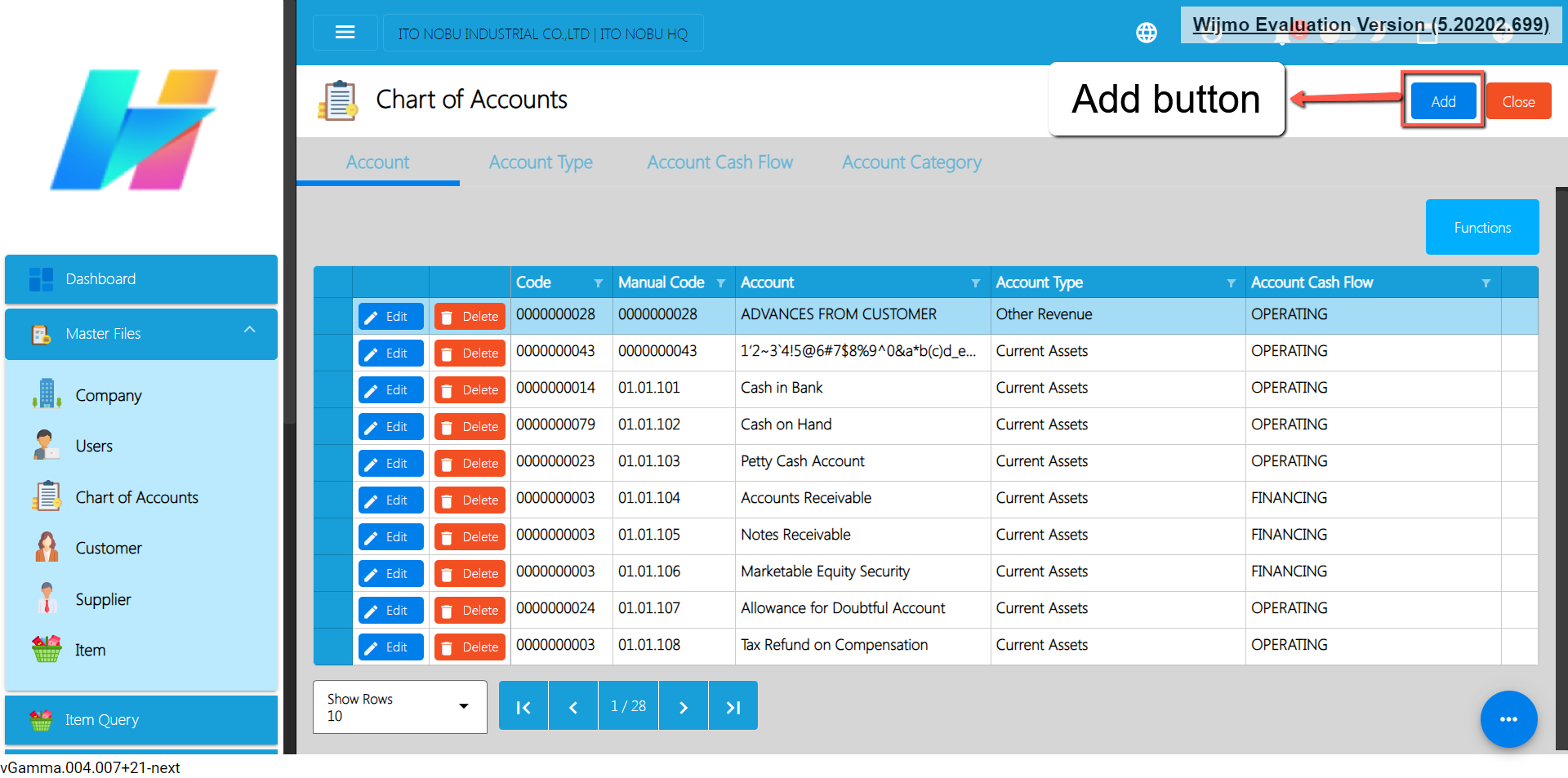
  1. To add a new account, click the Add button.

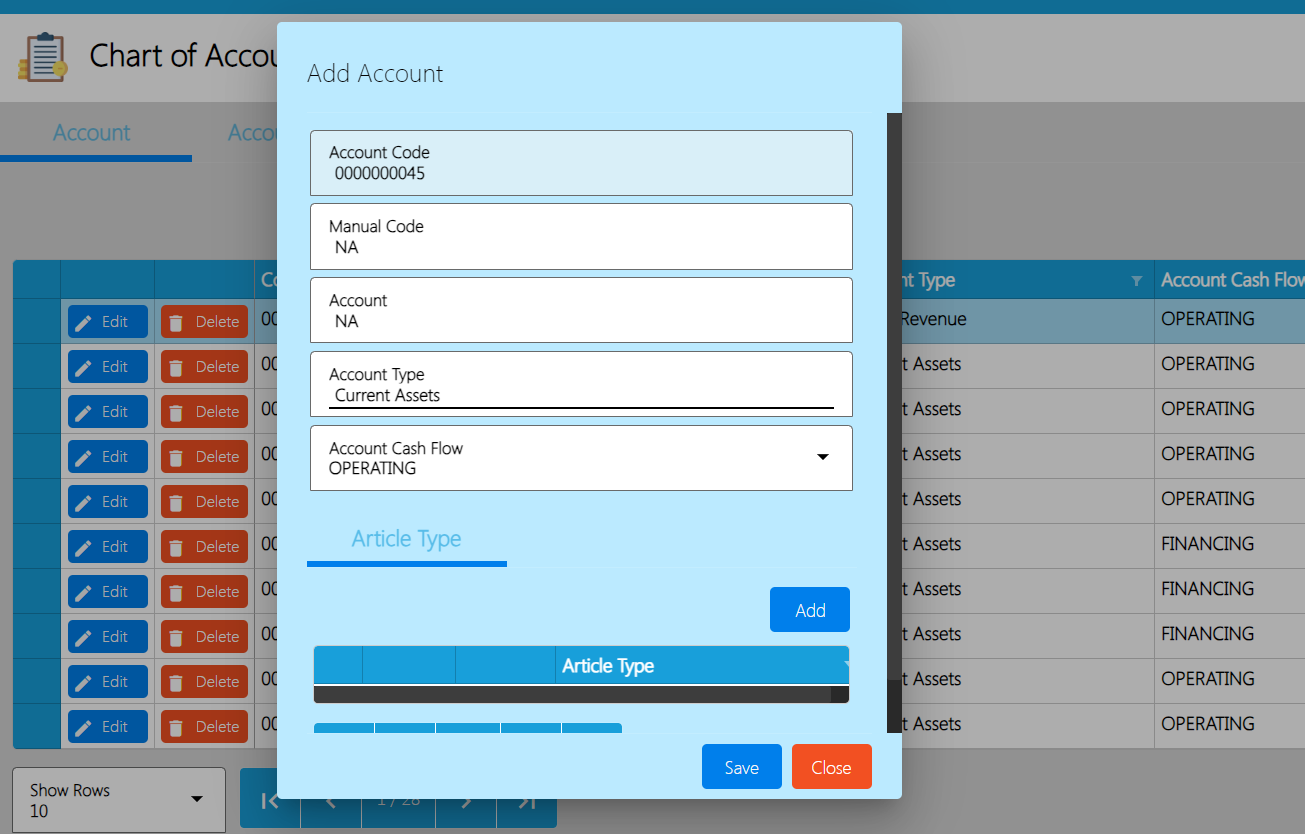
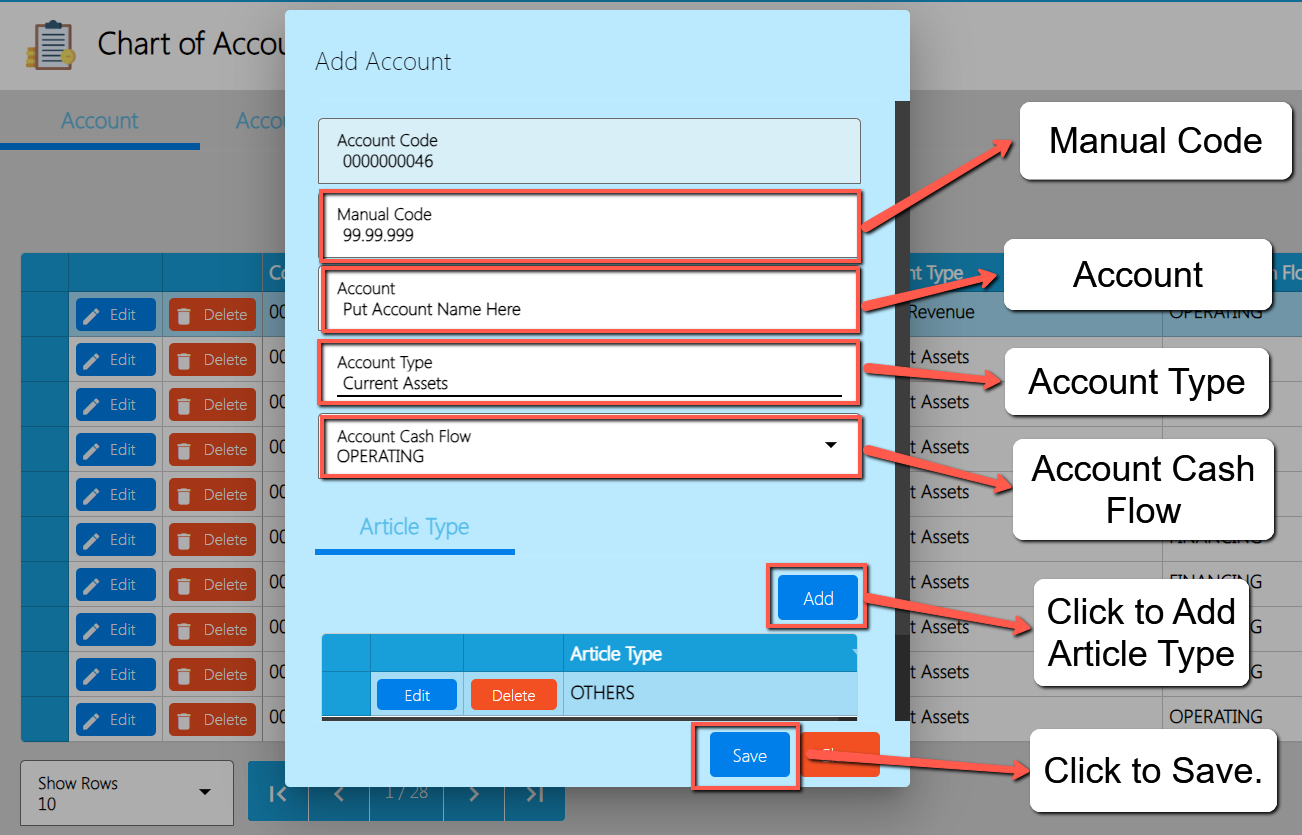
  1. An Add Account window will popup where you need to input the Account details.

  1. Fill in the important fields with correct information like:a. Manual Code
    b. Account
    c. Account Type
    d. Account Cash Flow
    e. Article Type

  1. Once everything is okay, click the Save button.

4.1.6.2 Add Chart of Accounts via Upload Account

  1. Go to Master Files, then select Chart of Accounts.
  1. You will be redirected to the Chart of Accounts list where you can see the following tabs:
  1. Account → list of accounts.
  2. Account Type → list of account types.
  3. Account Cash Flow → list of account flows.
  4. Account Category → list of account categories.
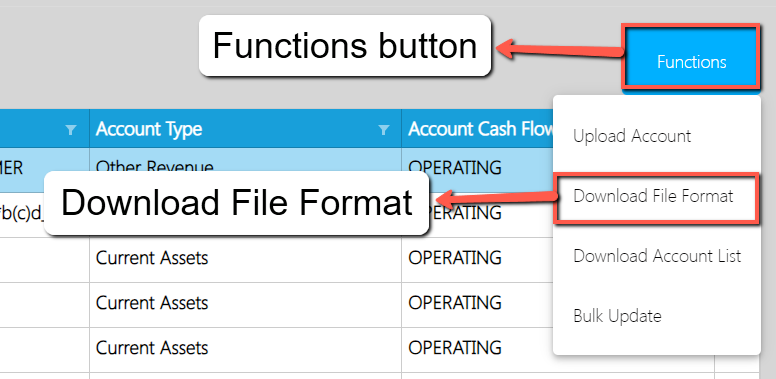
  1. To add new accounts via Upload Account, click the Functions button, then click the Download File Format for the Account template.

  1. An excel file will be downloaded with a file name of Account Format.

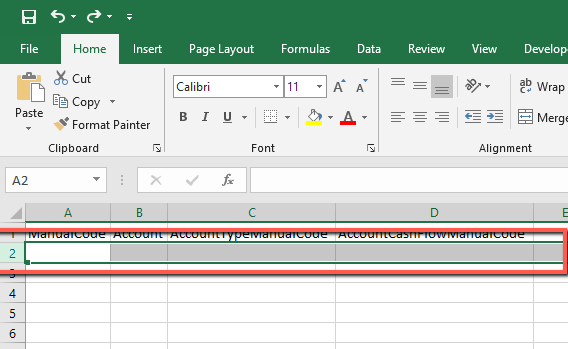
  1. Open the excel file and you will see the following columns:
  1. ManualCode
  2. Account
  3. AccountTypeManualCode
  4. AccountCashFlowManualCode
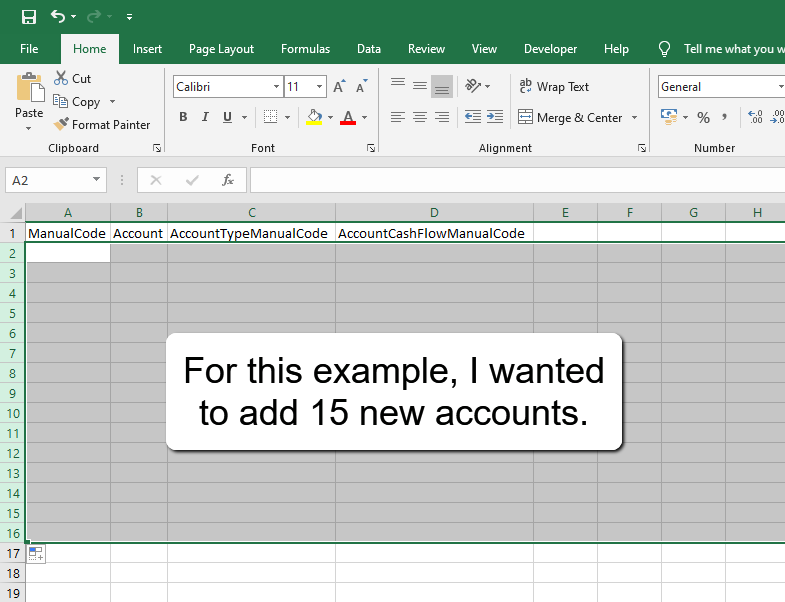
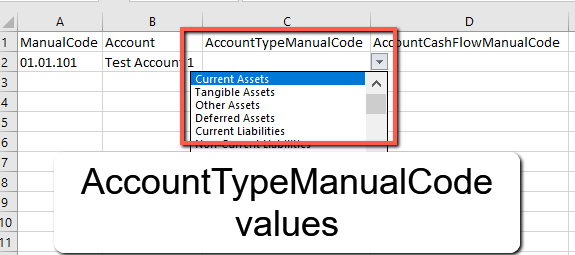
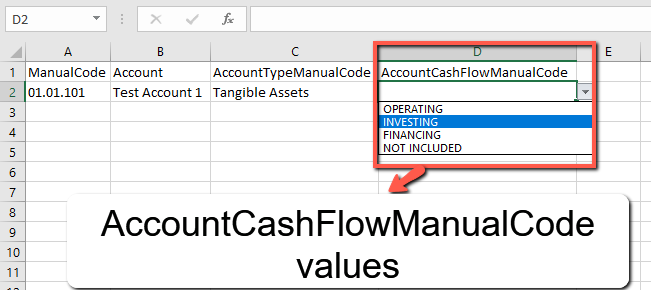
  1. If you wish to add bulk accounts, we highly recommend you to copy first the first data (cell 2) as it has dropdown values for the AccountTypeManualCode and AccountCashFlowManualCode.
  1. Click Row number 2. This is what is looks like upon clicking:
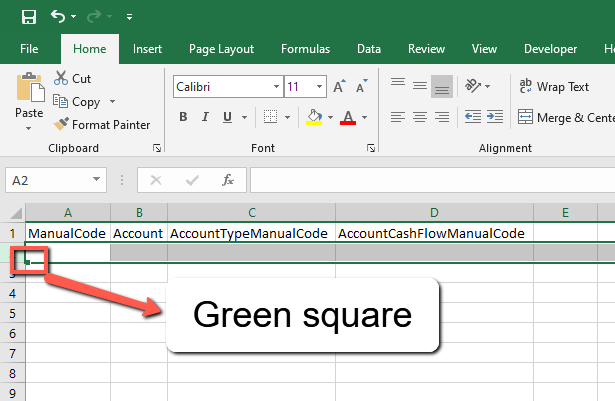
  1. Look for the square colored with green then drag lower until you reach the number of accounts you wanted to add.

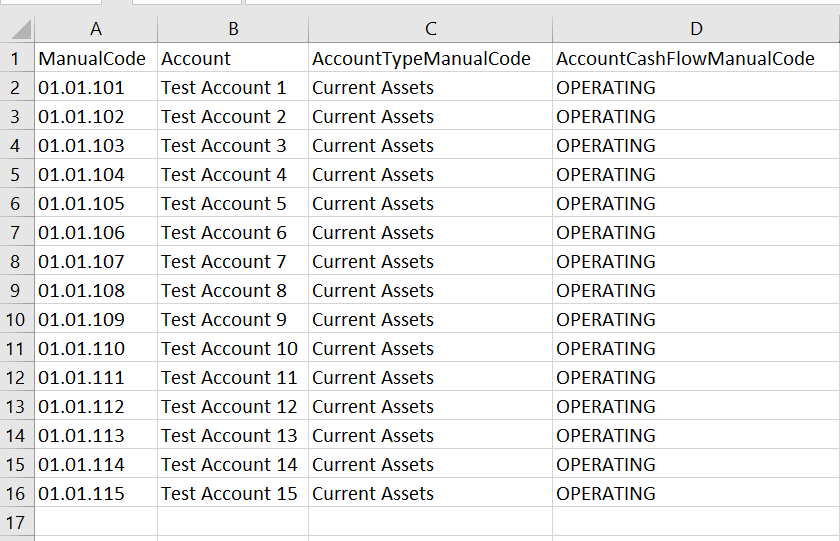
  1. After that, provide a ManualCode and Account value with correct details.
  2. For the AccountTypeManualCode and
  3. AccountCashFlowManualCode, click the cell. You will see a dropdown icon, click the dropdown icon, and select the correct value.

Above screenshot is a sample data to be up

  1. If you are done with providing correct values, save the file.
  2. On the easyFS, go to Master Files again, then click the Chart of Accounts.
  1. After that, click the Functions button then, Upload Account to upload the file being downloaded earlier.
  1. A file dialogue will open and look for the Account Format file. Once found, double click the file to upload.
  2. Wait until the upload is complete, once complete, a success toast message will appear.

4.1.7 Bank

  • Establish a Bank, which is a structured list of all Bank accounts used by the organization.

4.1.7.1 Bank List

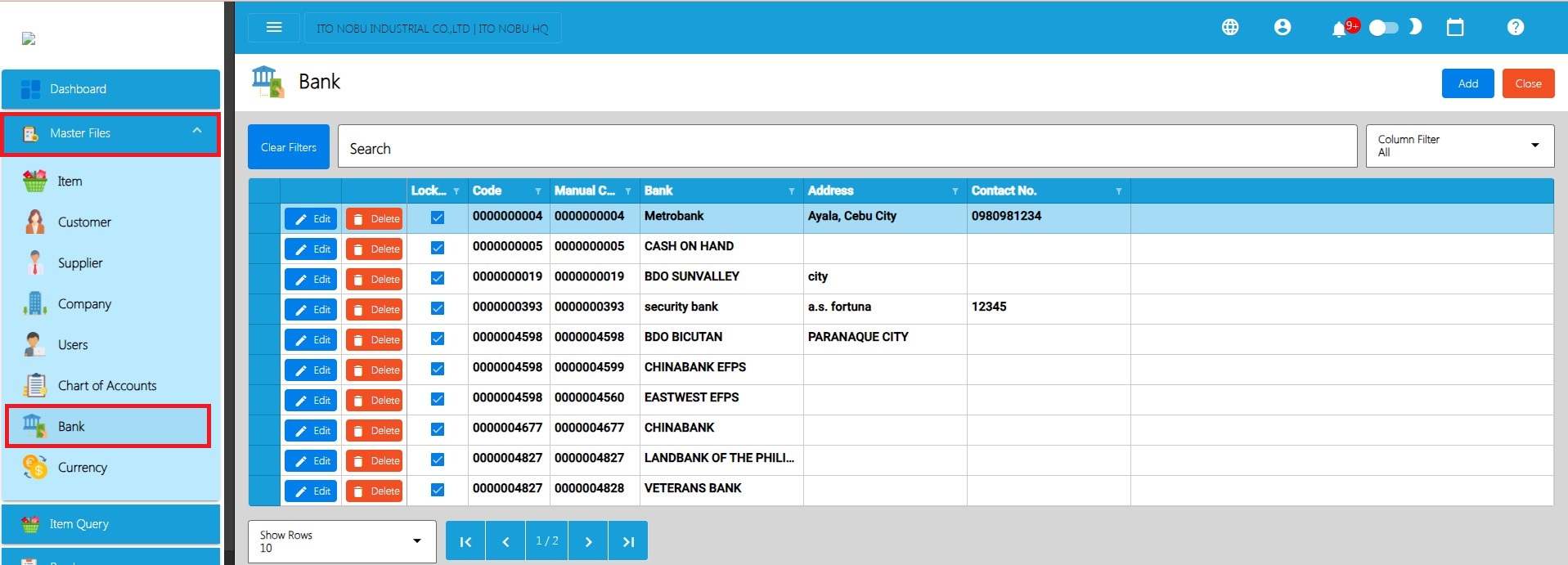
  • List of All Bank Accounts that were added to the System
  • Here the user can choose what Bank account they want to set up for them to use in their transactions, bank details are:
  • Code – This is auto incremented by the system
  • Manual Code – this is used to assign specific code for a specific bank
  • Bank – It is where you put the name identifier of the bank
  • Address – It is where you put the address of the bank
  • Contact No. – It is where you enter the contact number of the bank

4.1.7.2 Manual Add of Bank

  1. Go to Master Files, Select Bank
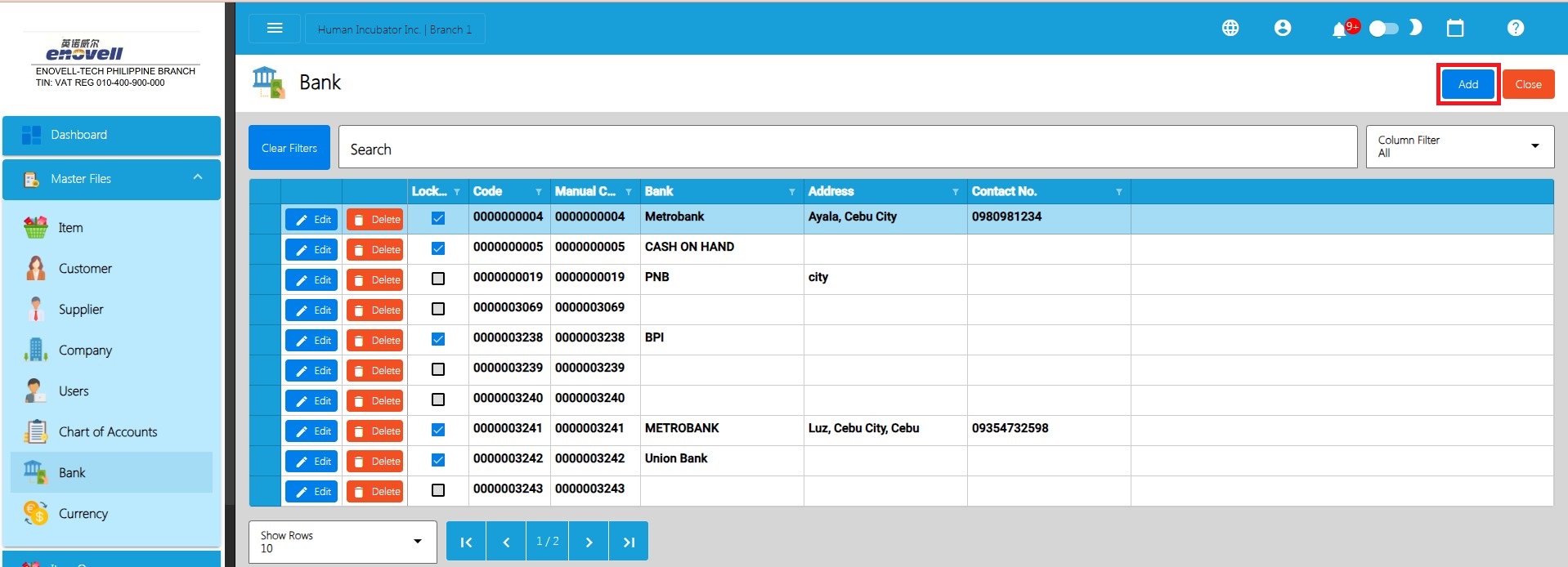
  1. To add a new Bank, click the Add button.

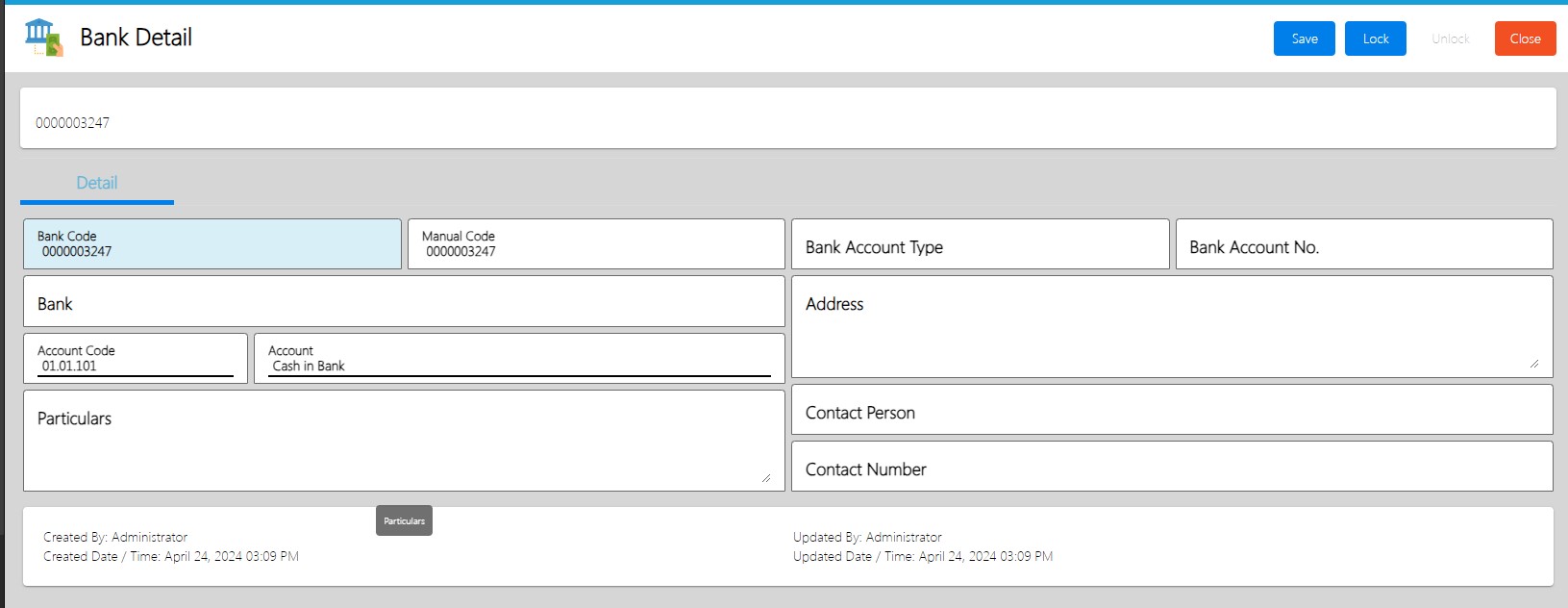
  1. Fill in the important fields with correct information like:
  1. Manual Code
  2. Bank Account Type
  3. Bank Account No.
  4. Bank (Name)
  5. Address. etc.

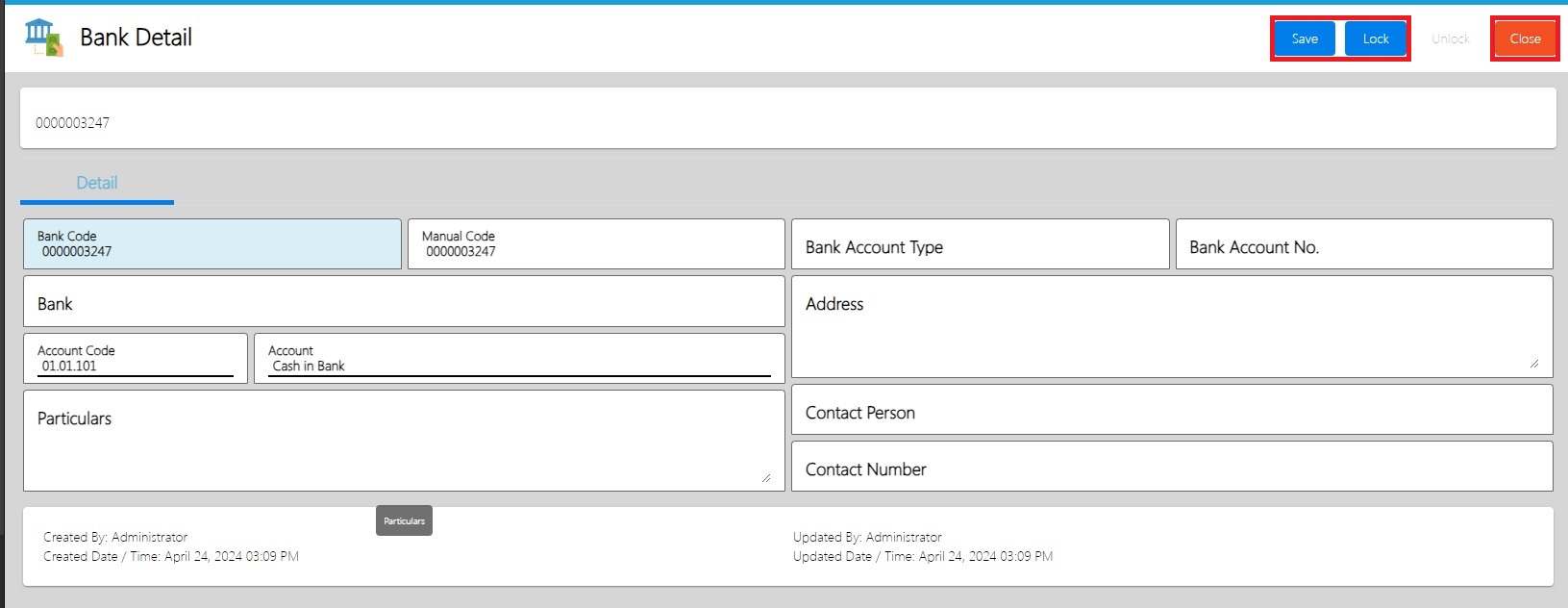
  1. Click Save and Lock and Close to go back to the Bank List

4.1.8 Currency

  • Establish a Currency, which is a structured list of all Currency used by the organization.

4.1.8.1 Currency List

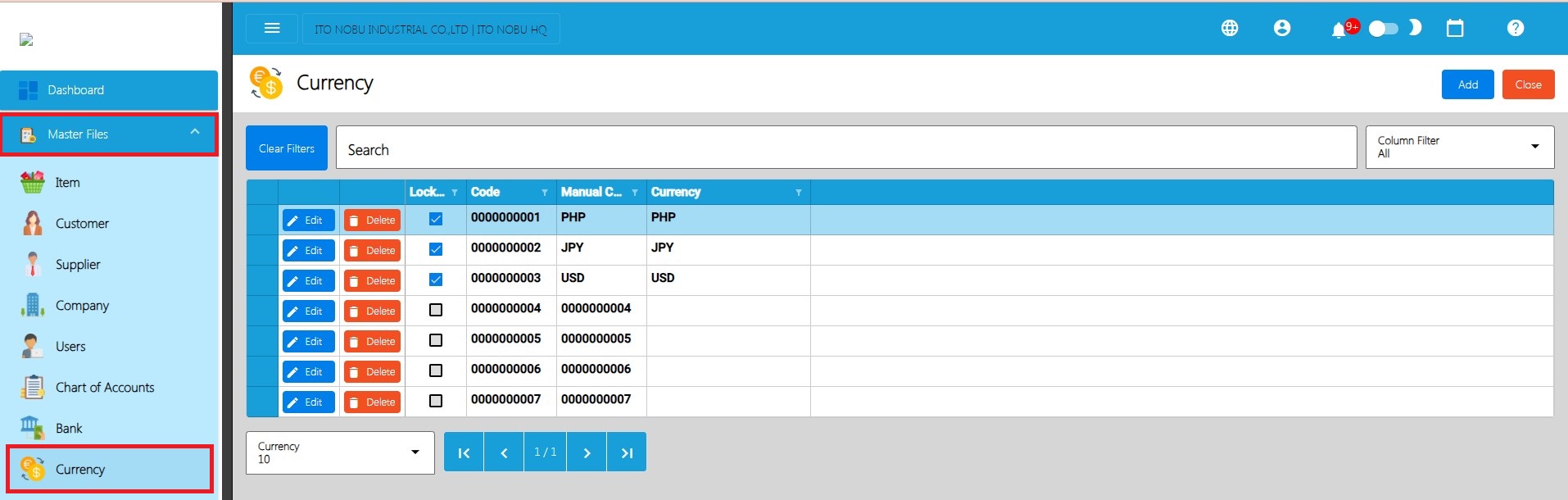
  • List of All Currency that were added to the System
  • Here the user can choose what currency they want to set up for them to use in their transactions. Currency details are:
  • Code
  • Manual Code
  • Currency Name

4.1.8.2 Manual Add of Currency

  1. Go to Masterfile, Select Currency.

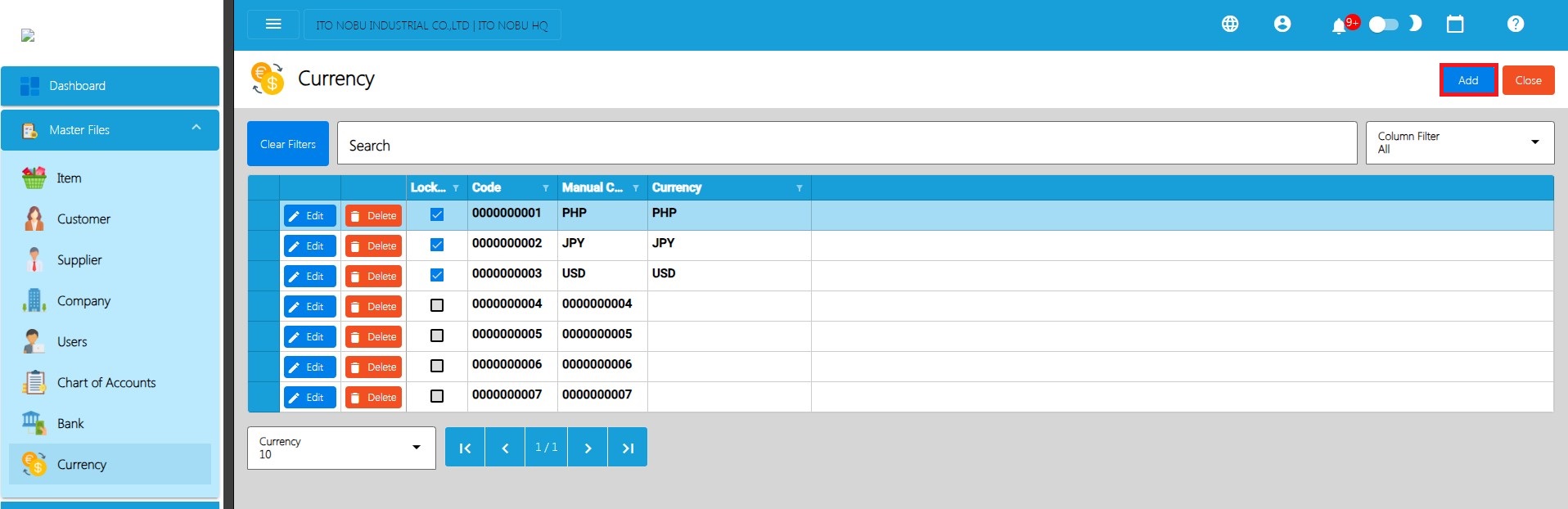
  1. To add a new Currency, click the Add button.

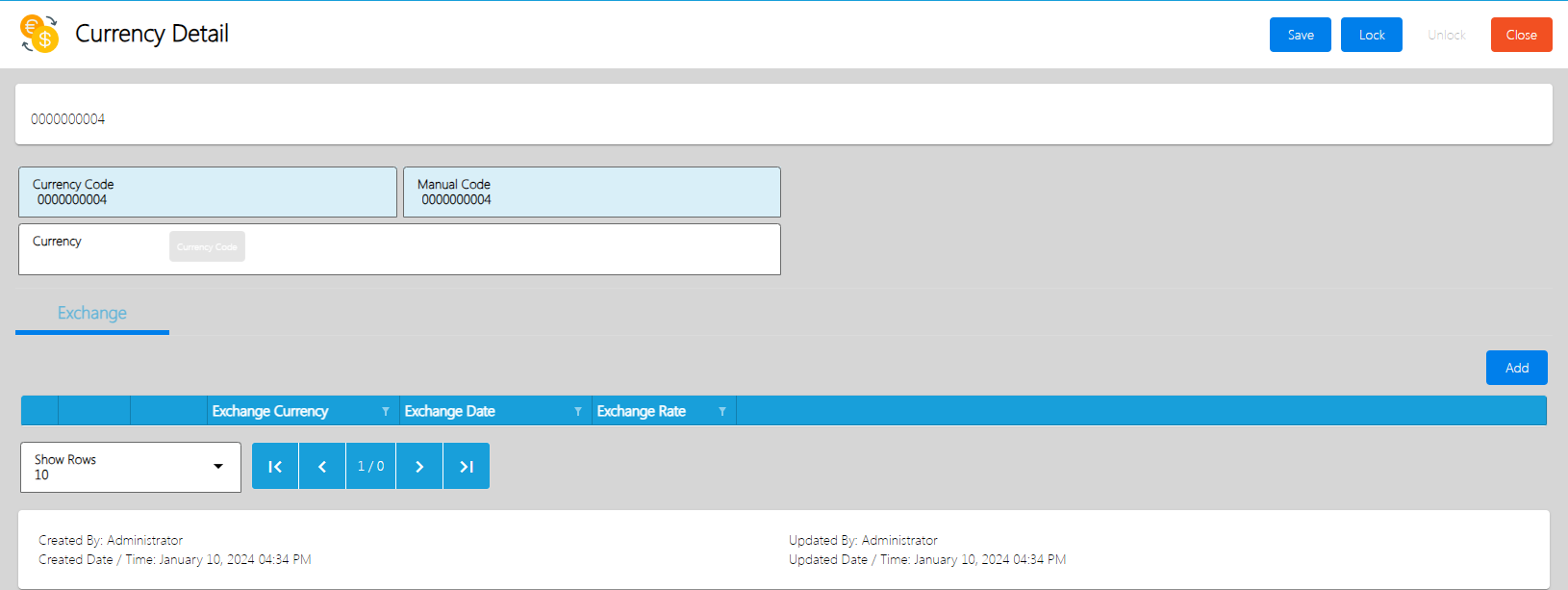
  1. Fill in the important fields with correct information like:
  1. Currency Name
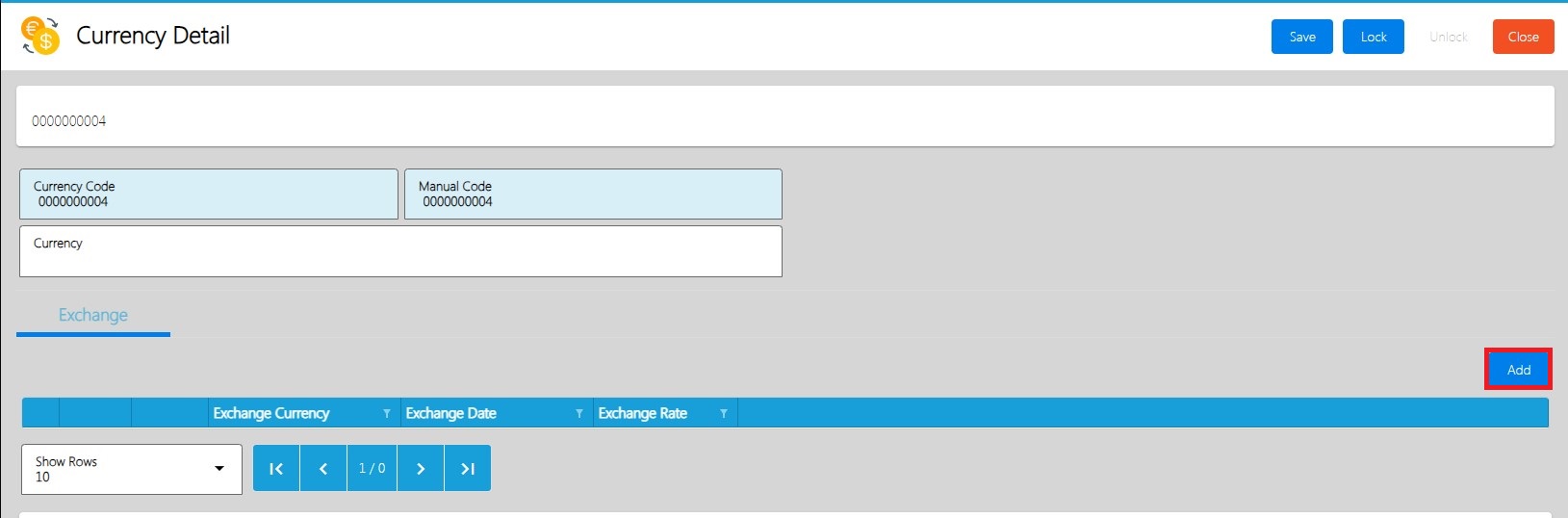
  1. Click Add, Under exchange tab.

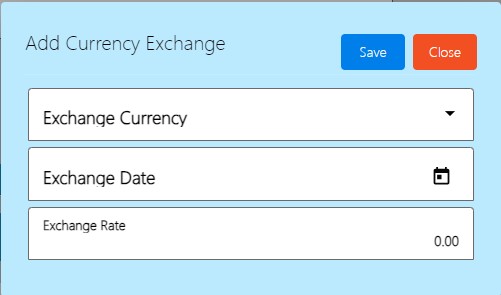
  1. An Add Currency Exchange window will appear
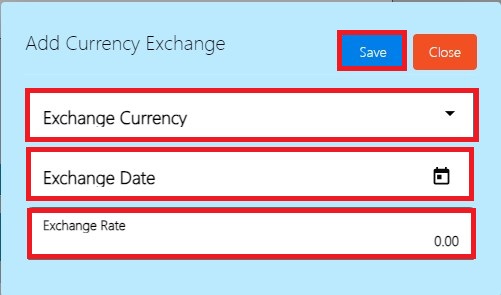
  1. Fill in the important fields with correct information like and click Save:

    a. Exchange Currency
    b. Exchange Date
    c. Exchange Rate

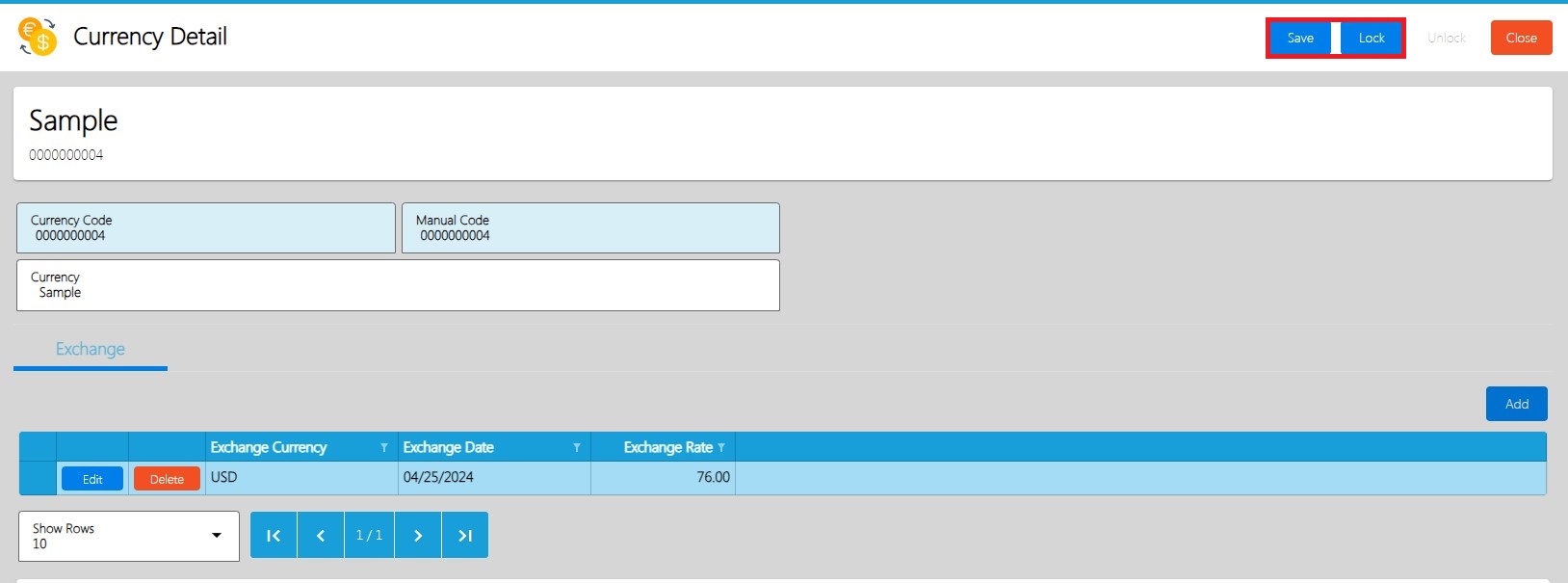
  1. Click Save and Lock and Close to go back to the Currency List


Back to Top

Chat with HII Easy Series

Typically replies within a few hours

Hi! How can we help you