Search User Manual
1.3 Purpose of this User Manual
1.4 Who Should Use This Manual
1.4 Best Practices and System Limitations
1.4.1 Setting up the Master Files
4.1.1.1 How to Add an Item Manually
4.1.1.2 Add Item Via Import Function
4.1.2.2 Add Customer Via Import Function
4.1.3.2 Add Supplier Via Import Function
List of All Users that were added to the System
4.1.6.1 Chart of Accounts Lists
4.1.6.2 Manual Add Chart of Accounts
4.1.6.2 Add Chart of Accounts via Upload Account
4.1.8.2 Manual Add of Currency
4.2.1.1 Manual Update Item Detail
4.2.1.2 Update Item Detail in Bulk
4.2.2.1 Manual Update Supplier Detail
4.2.2.1 Update Supplier Detail in Bulk
4.2.3.1 Manual Update Customer Detail
4.2.3.1 Update Customer Detail in Bulk
5.2 Purchases Transaction Module
Cancel Purchase Request Transaction
Purchase Order Transaction via Upload Template
Cancel Purchase Order Transaction
Cancel Receiving Receipt Transaction
Cancel Disbursement Transaction
Debit Memo Transaction via Upload Template
Sales Order Transaction via Upload Template
Cancel Sales Order Transaction
Sales Invoice Transaction via Upload Template
Cancel Sales Invoice Transaction
Collection Transaction via Upload Template
Scenario 3: Extra-Ordinary Activities
Scenario 4: Multi-Branch with EasyPOS Integration
Accounts Payable Voucher Report
Accounts Payable By Currency Report
Purchase Request Summary Report
Purchase Request Detail Report
Purchase Order Detail With Balance Report
Receiving Receipt Summary Report
Receiving Receipt Detail Report
Print or Download the PDF Report
Available Item Per Batch Report
Cancelled Purchase Request Report
Cancelled Purchase Order Report
Cancelled Receiving Receipt Report
Accounts Receivable Summary Report
Accounts Receivable by Term Report
Accounts Receivable by Currency Report
Accounts Receivable Report (One Month)
Statement of Account (By Date Range)
Collection Summary by PayType Report
Cancelled Sales Invoice Report
Sales Invoice Detail Report with Cost
Stock Transfer Detailed Report
13.1.1 Benefits of Integration
13.2.1 EasyPOS Integration Overview
13.3 How to Set Up Integrations
.toc-wrapper .c27{margin-left: 6pt}.toc-wrapper .c46{margin-left:14pt}.toc-wrapper .c46 .c14 a,.toc-wrapper .c50 a{font-size:13px}.toc-wrapper .c50{margin-left:18pt;} .manual-content table td, .manual-content table th{padding:0;border: 1px #aaa solid;padding: 10px;} .manual-content table td span,.manual-content table td p,.manual-content table td li{font-size:11px!important;}4.1.6 Chart of Accounts
- Establish a chart of accounts, which is a structured list of all accounts used by the organization.
- Categorize accounts based on assets, liabilities, equity, income, and expenses.
Note: An Accountant can advise what will be the best suited Chart of Accounts for your type of business.
4.1.6.1 Chart of Accounts Lists
- List of All Accounts that were added to the System
- Here the user can choose what Account they want to set up for them to use in their transactions, there are the tabs:
- Account – This is the name of the account used to record financial transactions.
- Account Type – This refers to the type of account based on the nature of the financial transactions. Common account types include assets, liabilities, equity, revenues, and expenses.
- Account Cash Flow – This refers to the direction of cash flow associated with the account. Accounts can be classified as cash inflows or cash outflows.
- Account Category – This refers to the grouping of accounts based on their function within the business. Common account categories include current assets, fixed assets, current liabilities, long-term liabilities, income, and expenses.
4.1.6.2 Manual Add Chart of Accounts
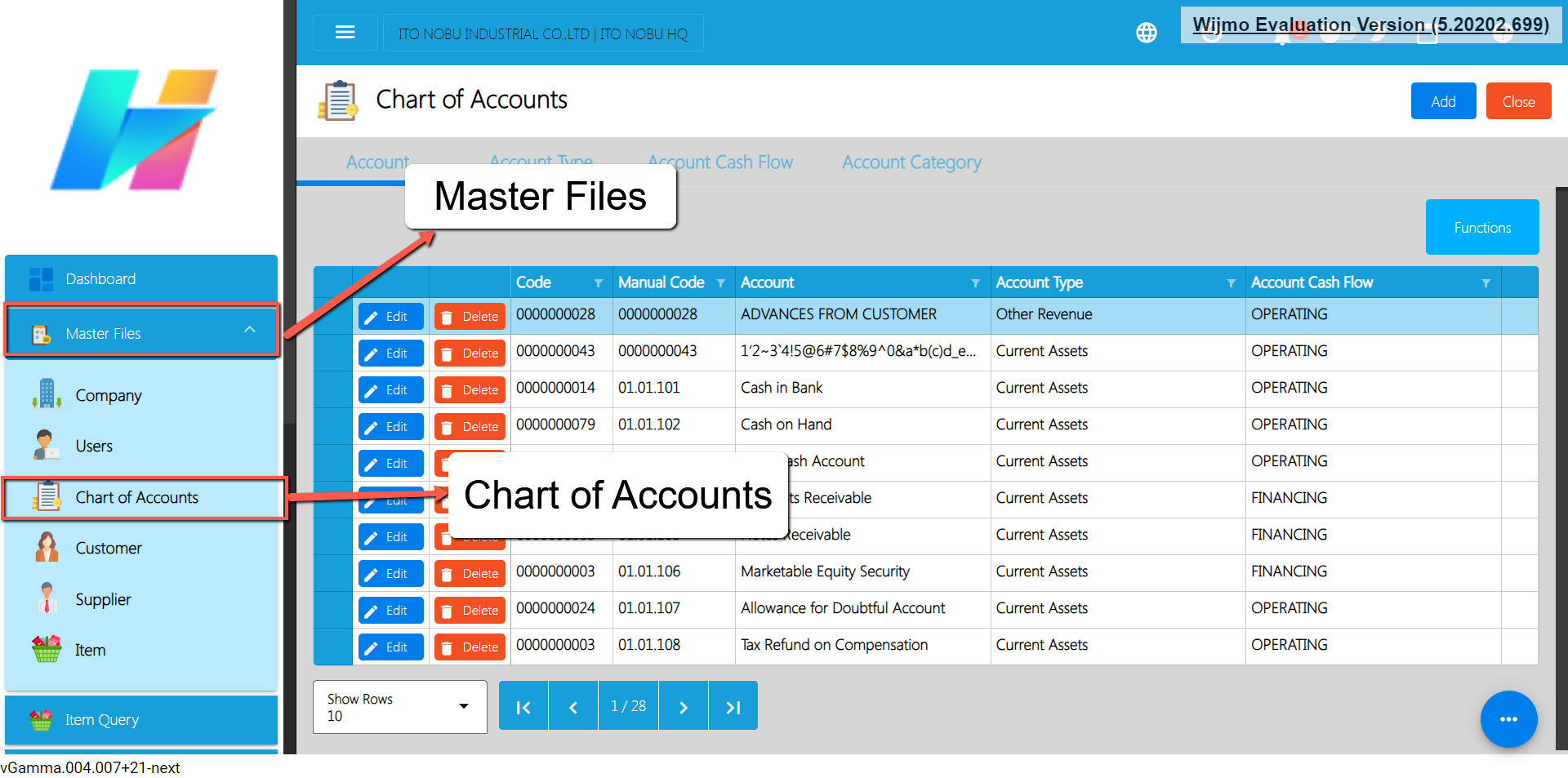
- Go to Master Files, then select Chart of Accounts.
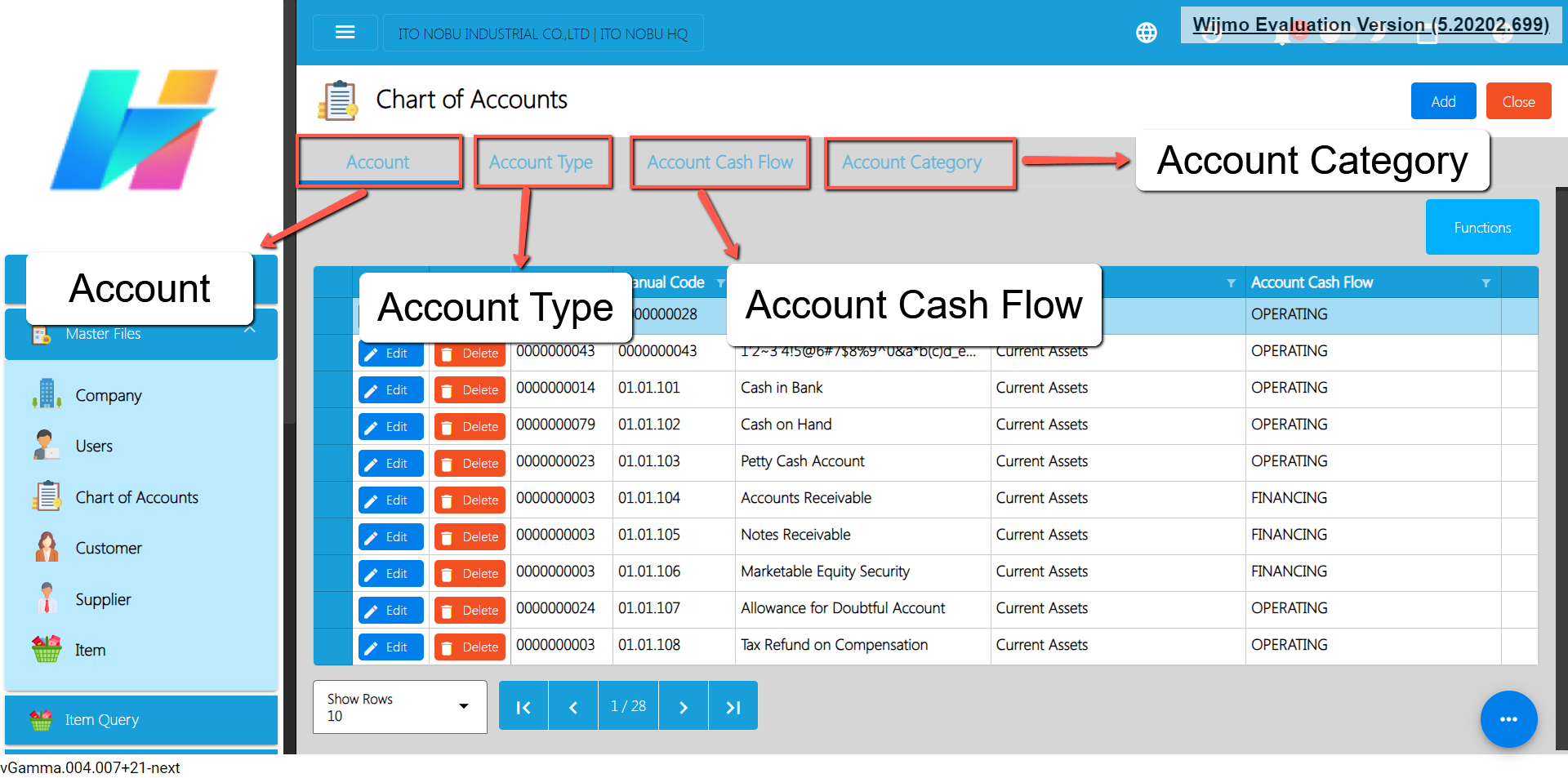
- You will be redirected to the Chart of Accounts list where you can see the following tabs:
a. Account → list of accounts.
b. Account Type → list of account types.
c. Account Cash Flow → list of account flows.
d. Account Category → list of account categories
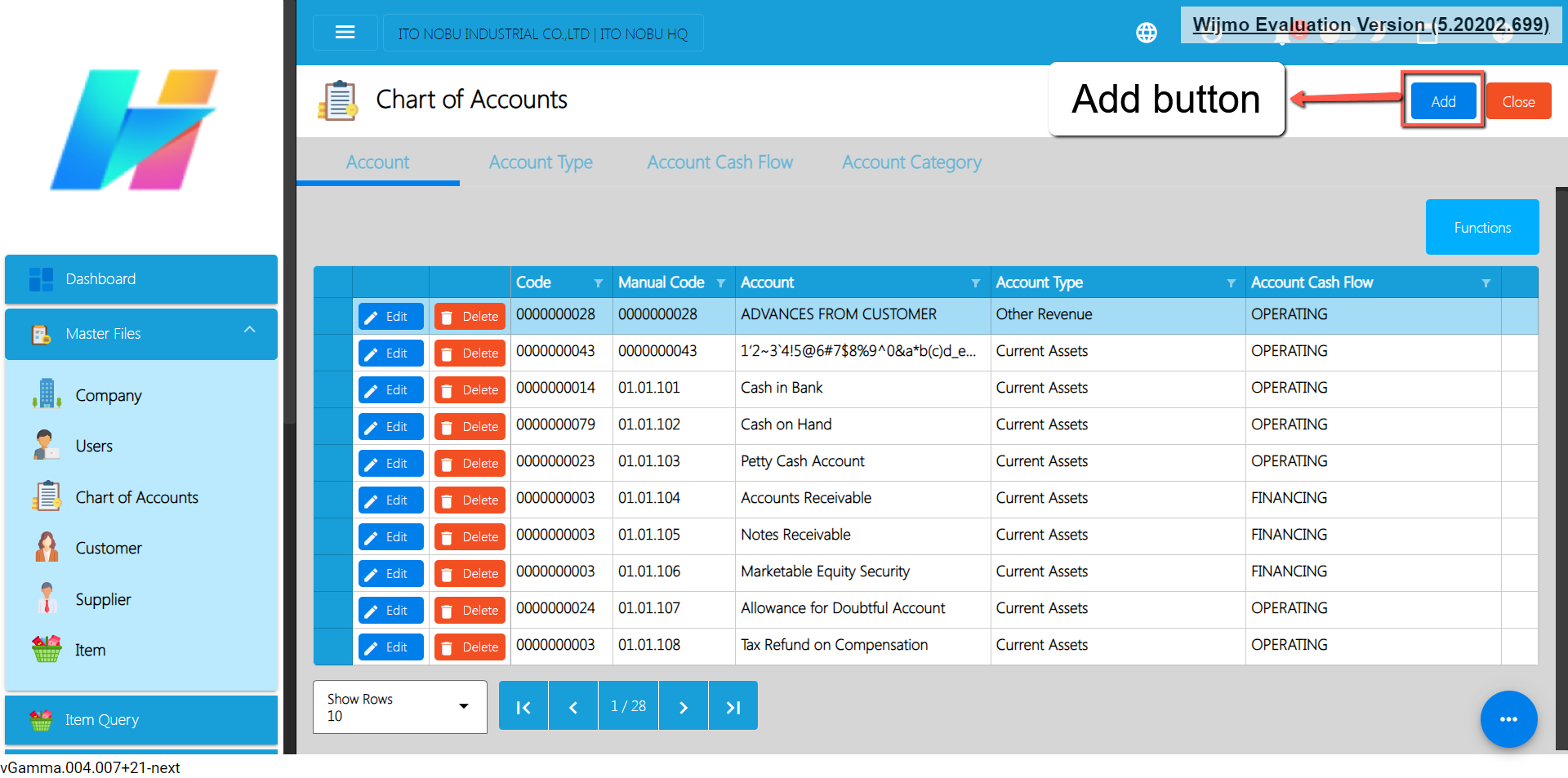
- To add a new account, click the Add button.
- An Add Account window will popup where you need to input the Account details.
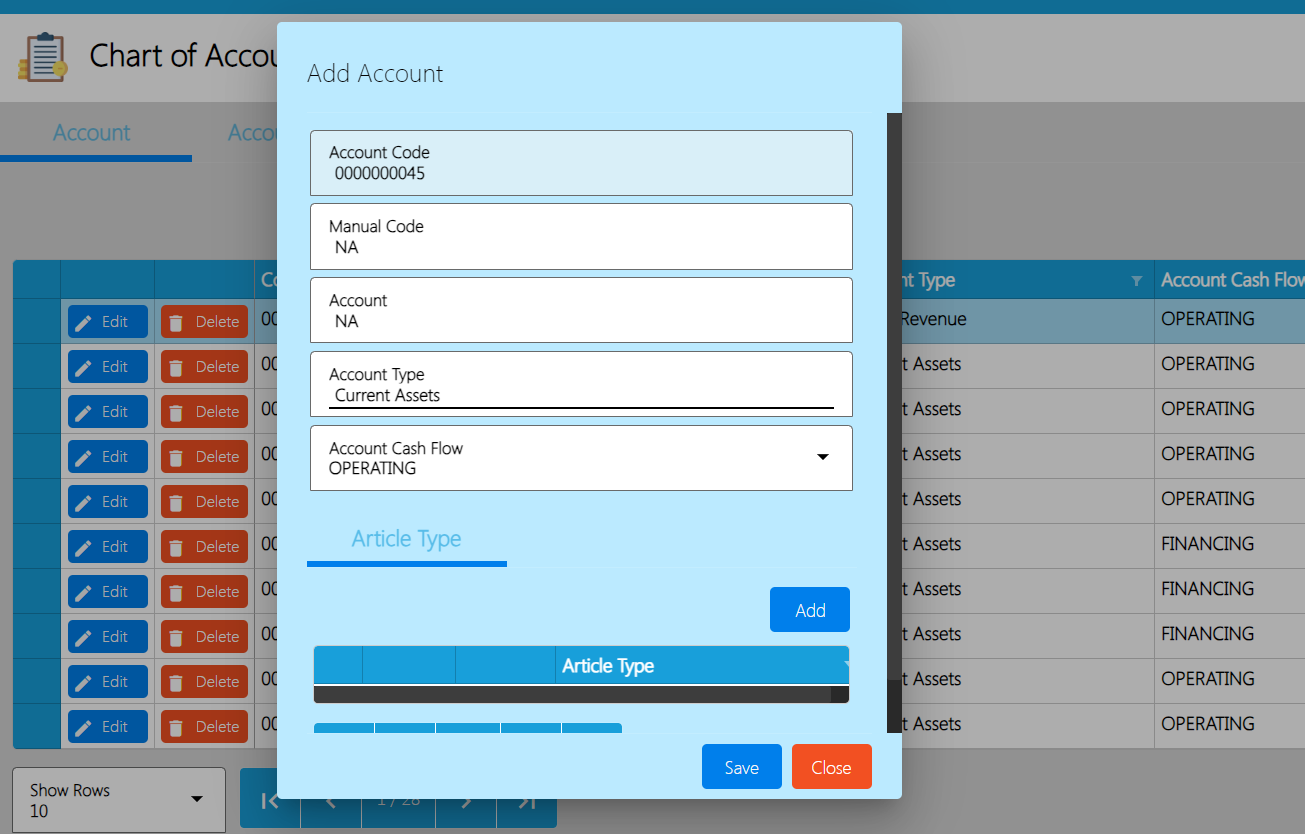
- Fill in the important fields with correct information like:a. Manual Code
b. Account
c. Account Type
d. Account Cash Flow
e. Article Type
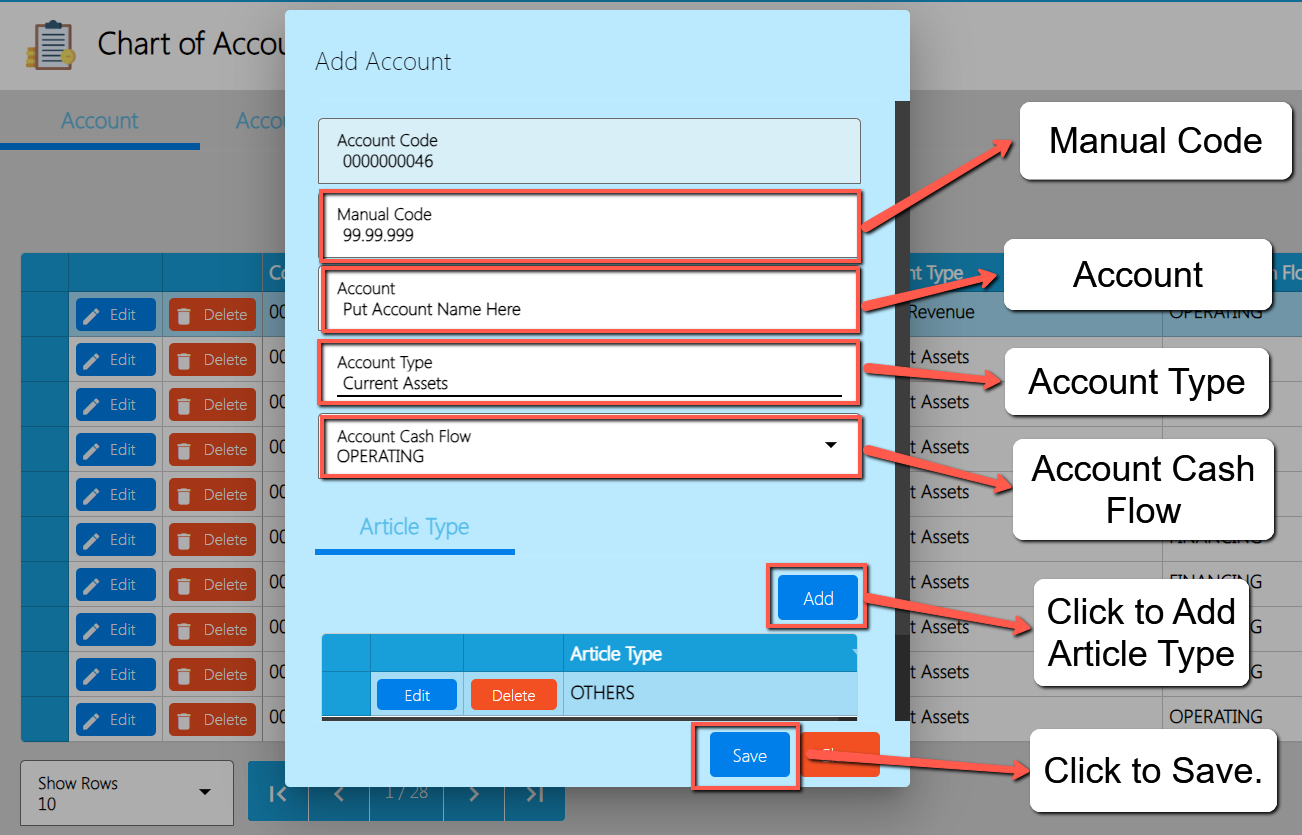
- Once everything is okay, click the Save button.
4.1.6.2 Add Chart of Accounts via Upload Account
- Go to Master Files, then select Chart of Accounts.
- You will be redirected to the Chart of Accounts list where you can see the following tabs:
- Account → list of accounts.
- Account Type → list of account types.
- Account Cash Flow → list of account flows.
- Account Category → list of account categories.
- To add new accounts via Upload Account, click the Functions button, then click the Download File Format for the Account template.
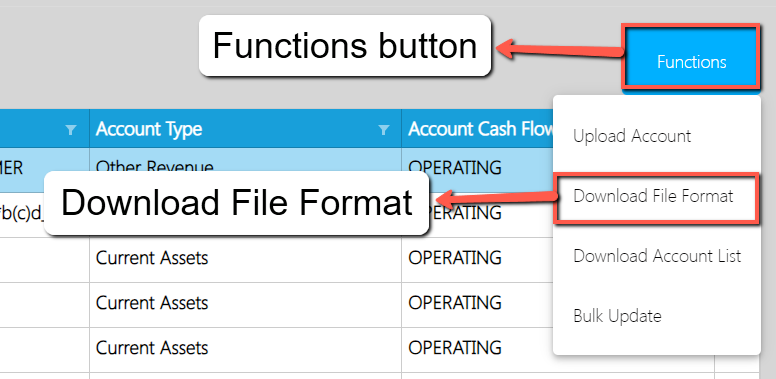
- An excel file will be downloaded with a file name of Account Format.

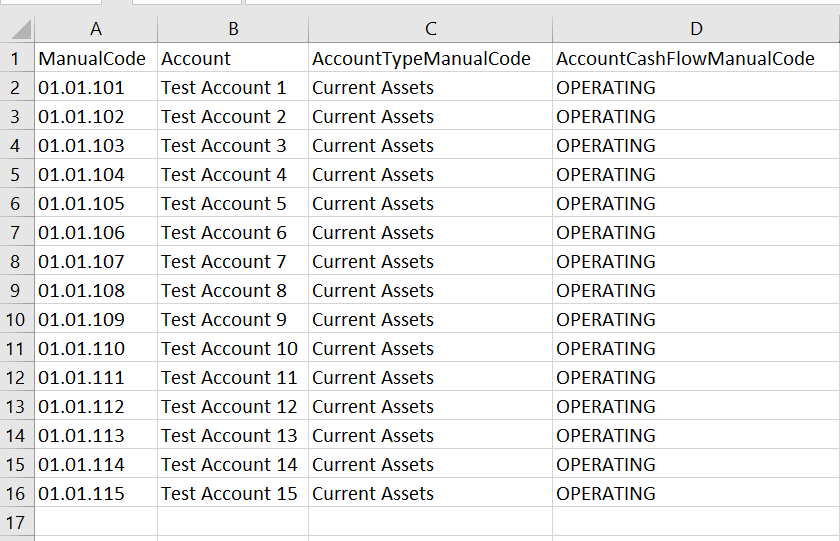
- Open the excel file and you will see the following columns:
- ManualCode
- Account
- AccountTypeManualCode
- AccountCashFlowManualCode
- If you wish to add bulk accounts, we highly recommend you to copy first the first data (cell 2) as it has dropdown values for the AccountTypeManualCode and AccountCashFlowManualCode.
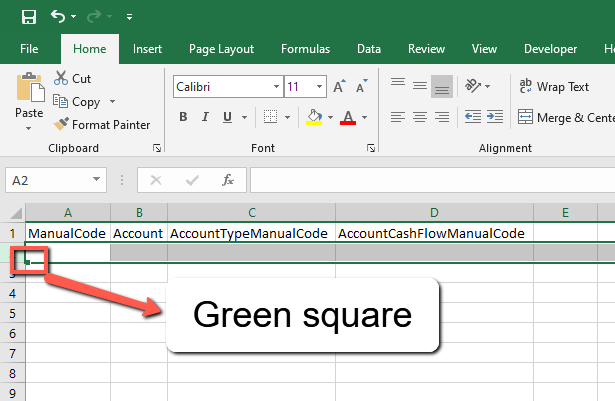
- Click Row number 2. This is what is looks like upon clicking:
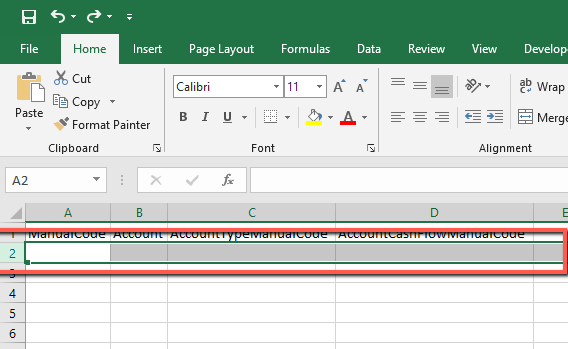
- Look for the square colored with green then drag lower until you reach the number of accounts you wanted to add.
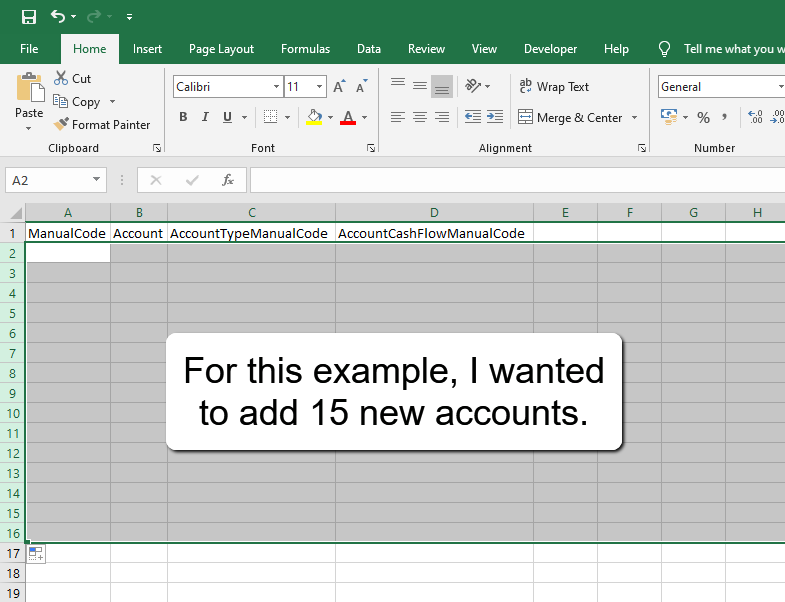
- After that, provide a ManualCode and Account value with correct details.
- For the AccountTypeManualCode and
- AccountCashFlowManualCode, click the cell. You will see a dropdown icon, click the dropdown icon, and select the correct value.
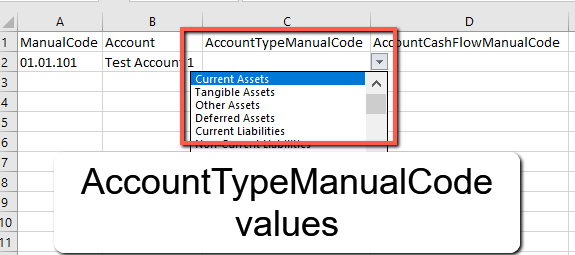
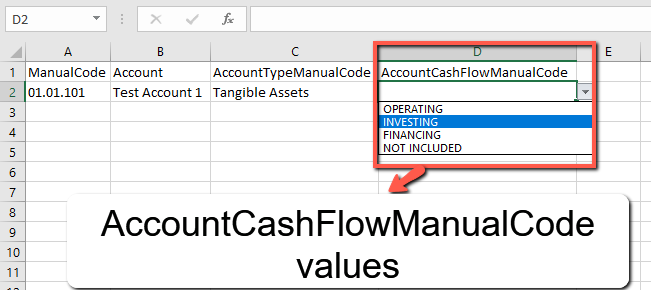
Above screenshot is a sample data to be up
- If you are done with providing correct values, save the file.
- On the easyFS, go to Master Files again, then click the Chart of Accounts.
- After that, click the Functions button then, Upload Account to upload the file being downloaded earlier.
- A file dialogue will open and look for the Account Format file. Once found, double click the file to upload.
- Wait until the upload is complete, once complete, a success toast message will appear.
4.1.7 Bank
- Establish a Bank, which is a structured list of all Bank accounts used by the organization.
4.1.7.1 Bank List
- List of All Bank Accounts that were added to the System
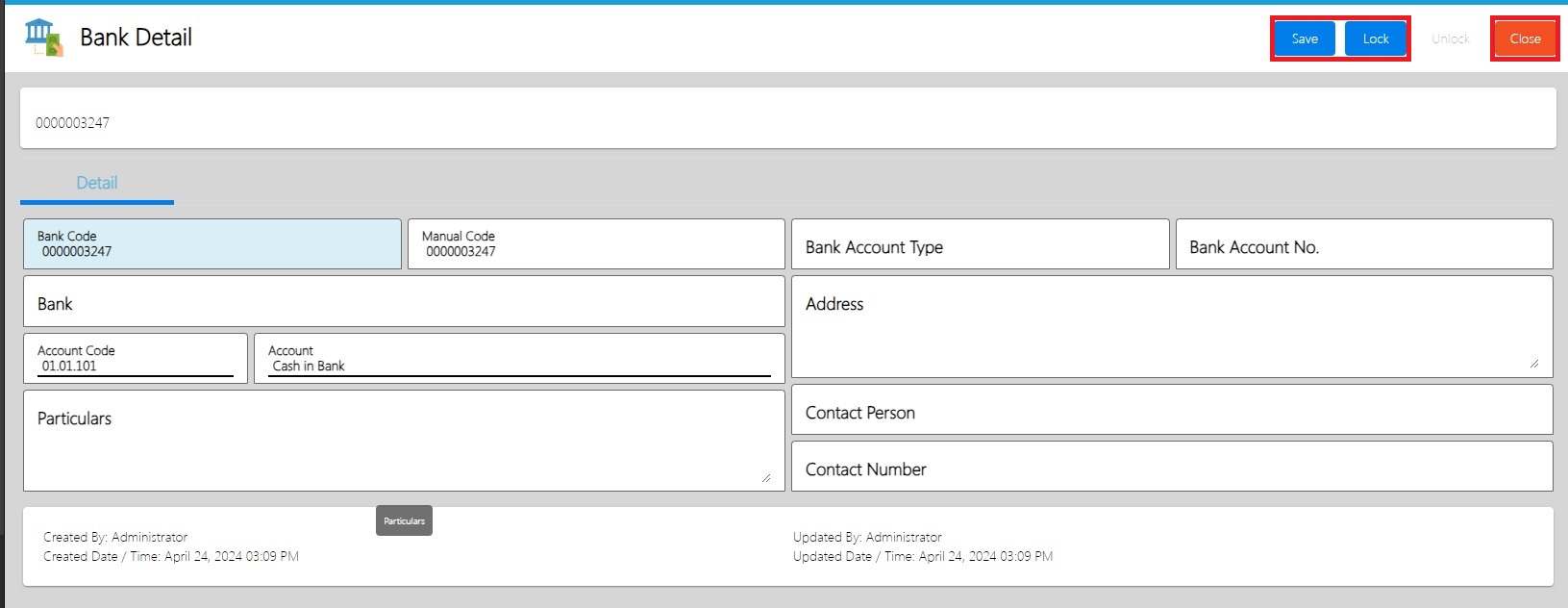
- Here the user can choose what Bank account they want to set up for them to use in their transactions, bank details are:
- Code – This is auto incremented by the system
- Manual Code – this is used to assign specific code for a specific bank
- Bank – It is where you put the name identifier of the bank
- Address – It is where you put the address of the bank
- Contact No. – It is where you enter the contact number of the bank
4.1.7.2 Manual Add of Bank
- Go to Master Files, Select Bank
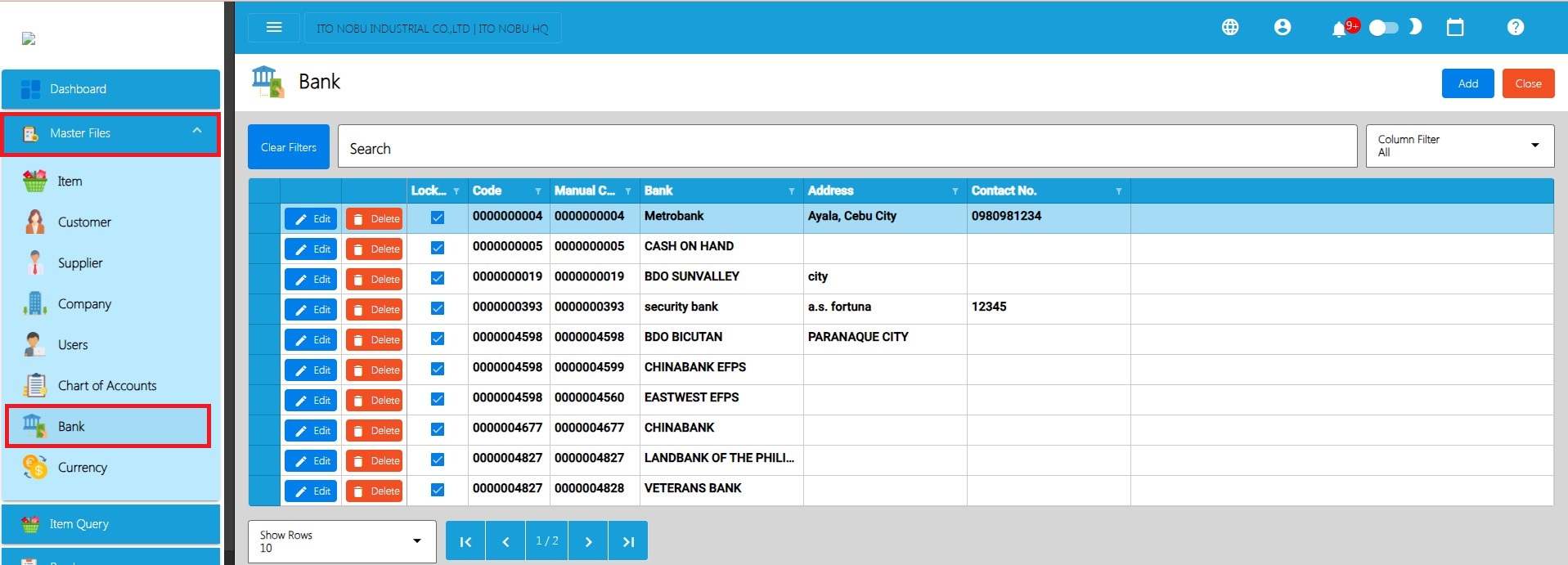
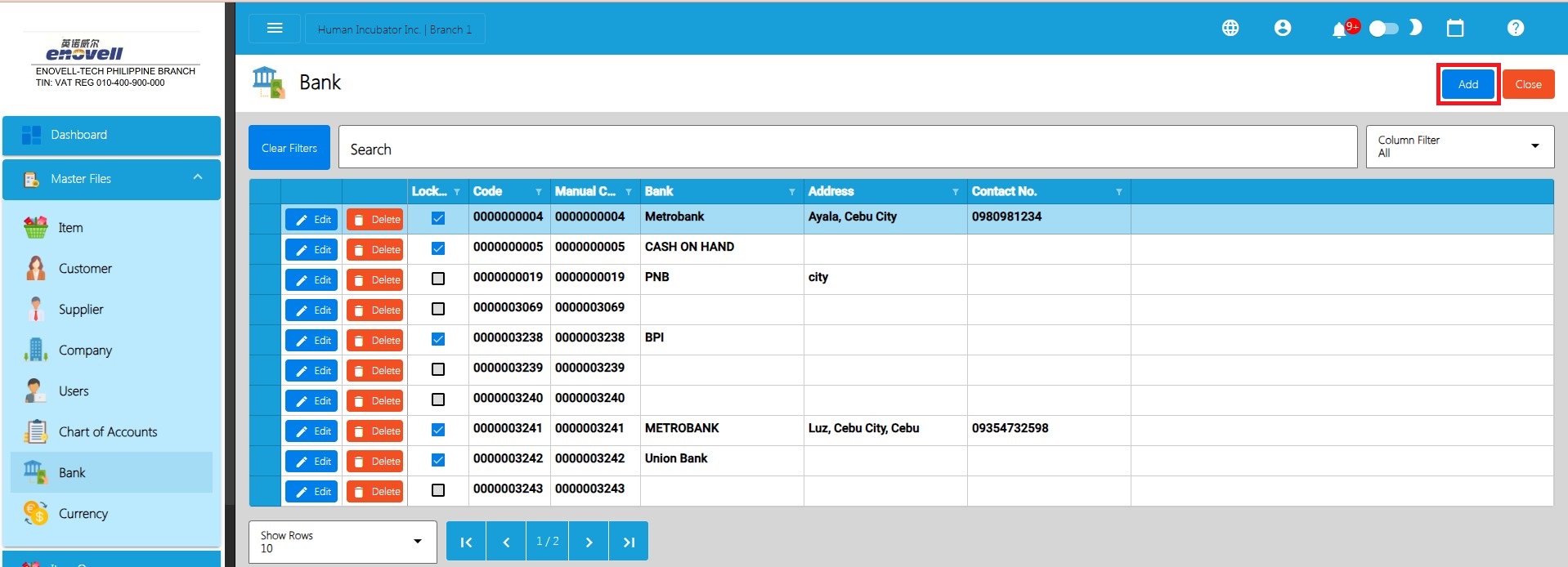
- To add a new Bank, click the Add button.
- Fill in the important fields with correct information like:
- Manual Code
- Bank Account Type
- Bank Account No.
- Bank (Name)
- Address. etc.
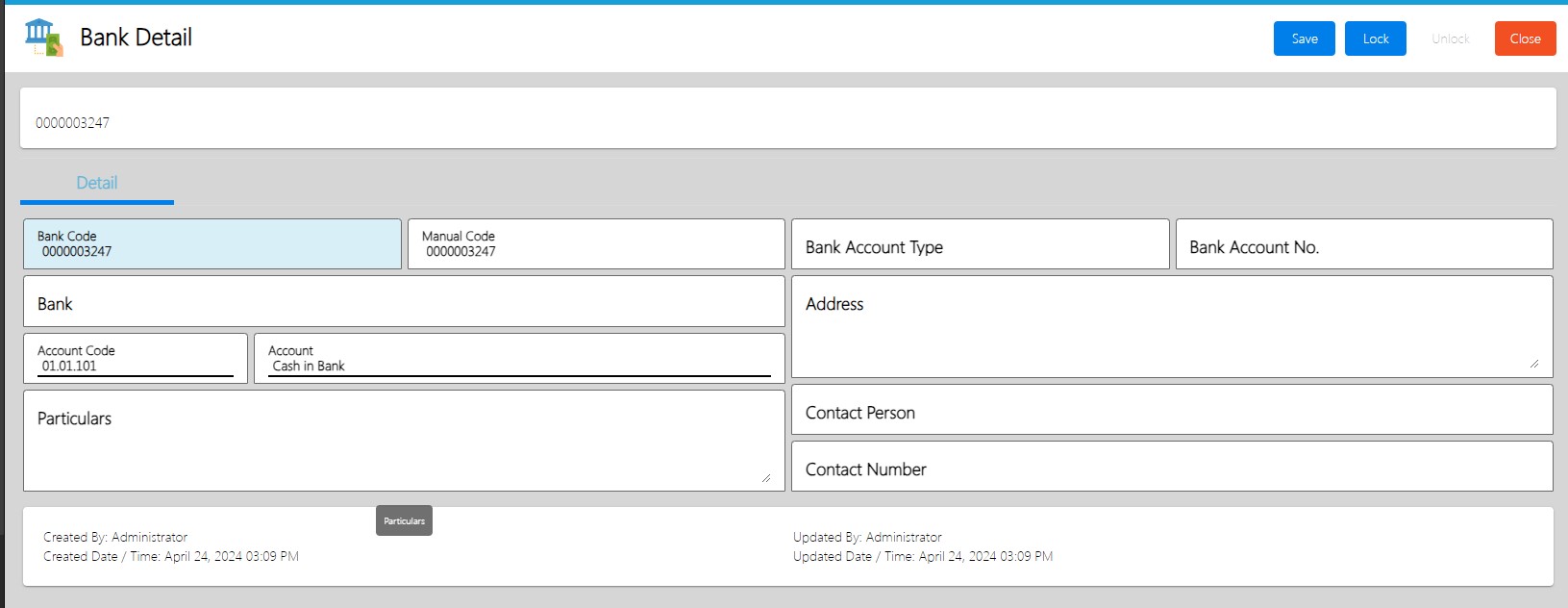
- Click Save and Lock and Close to go back to the Bank List
4.1.8 Currency
- Establish a Currency, which is a structured list of all Currency used by the organization.
4.1.8.1 Currency List
- List of All Currency that were added to the System
- Here the user can choose what currency they want to set up for them to use in their transactions. Currency details are:
- Code
- Manual Code
- Currency Name
4.1.8.2 Manual Add of Currency
- Go to Masterfile, Select Currency.
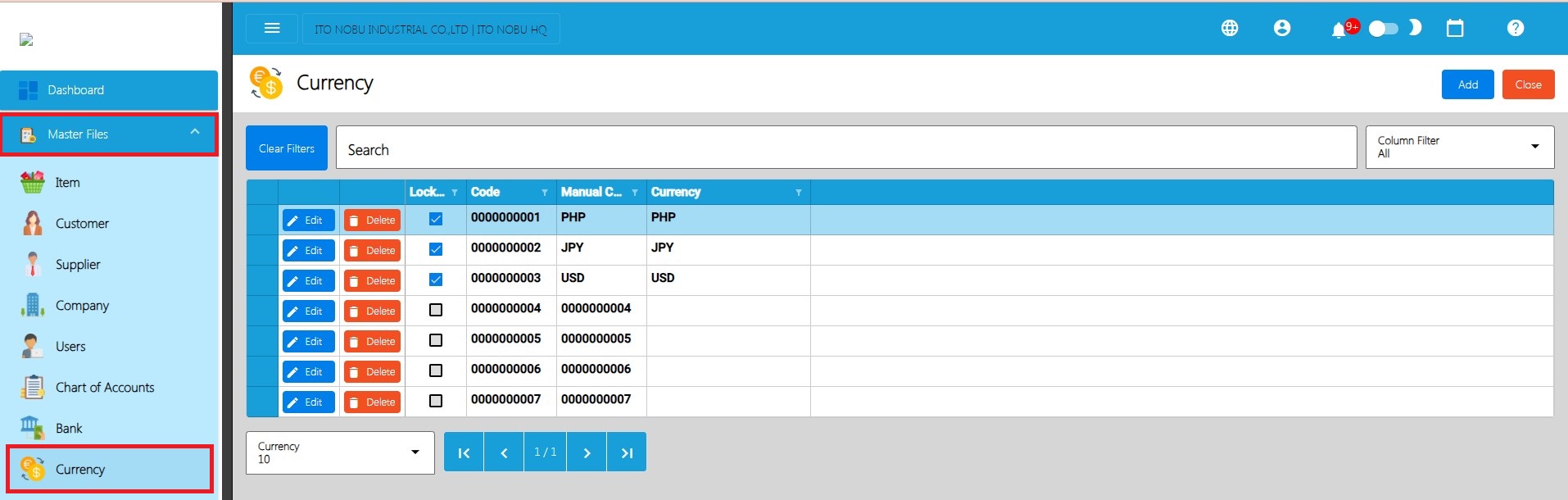
- To add a new Currency, click the Add button.
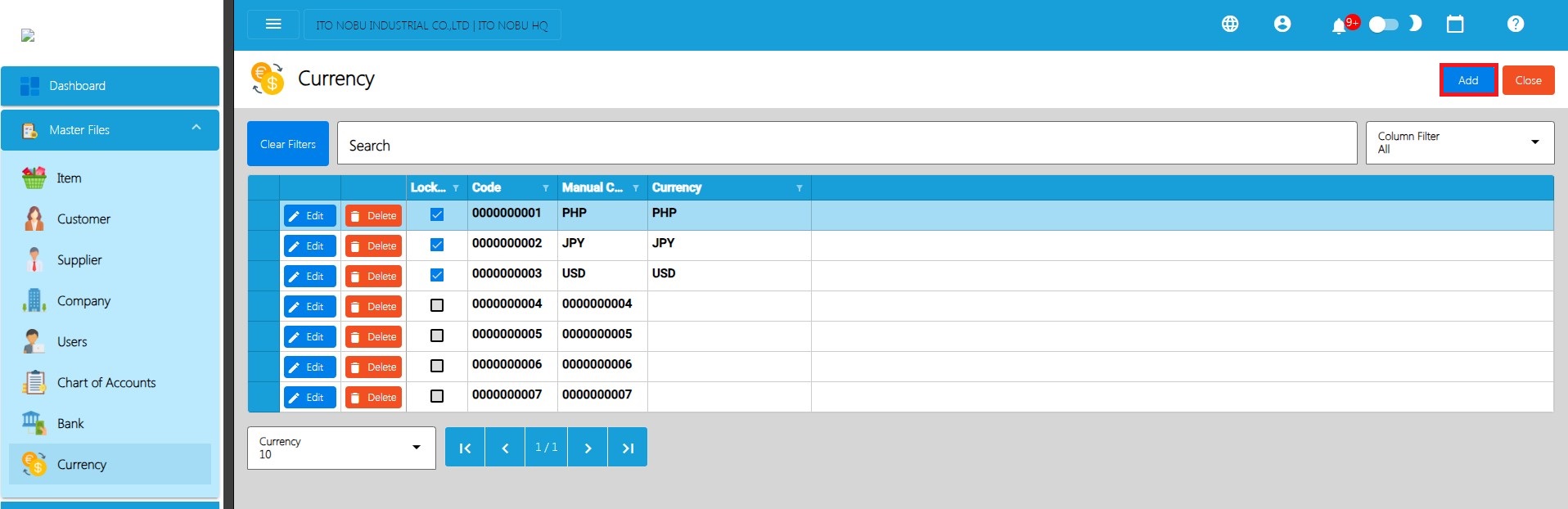
- Fill in the important fields with correct information like:
- Currency Name
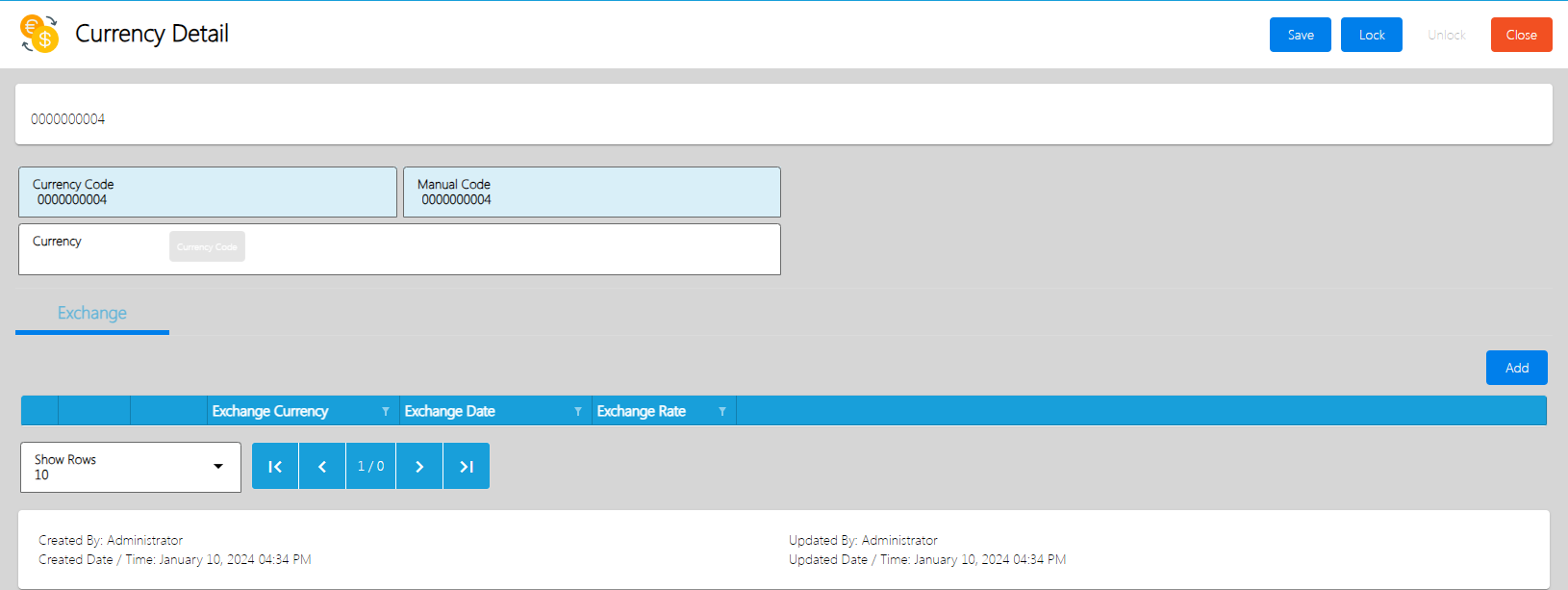
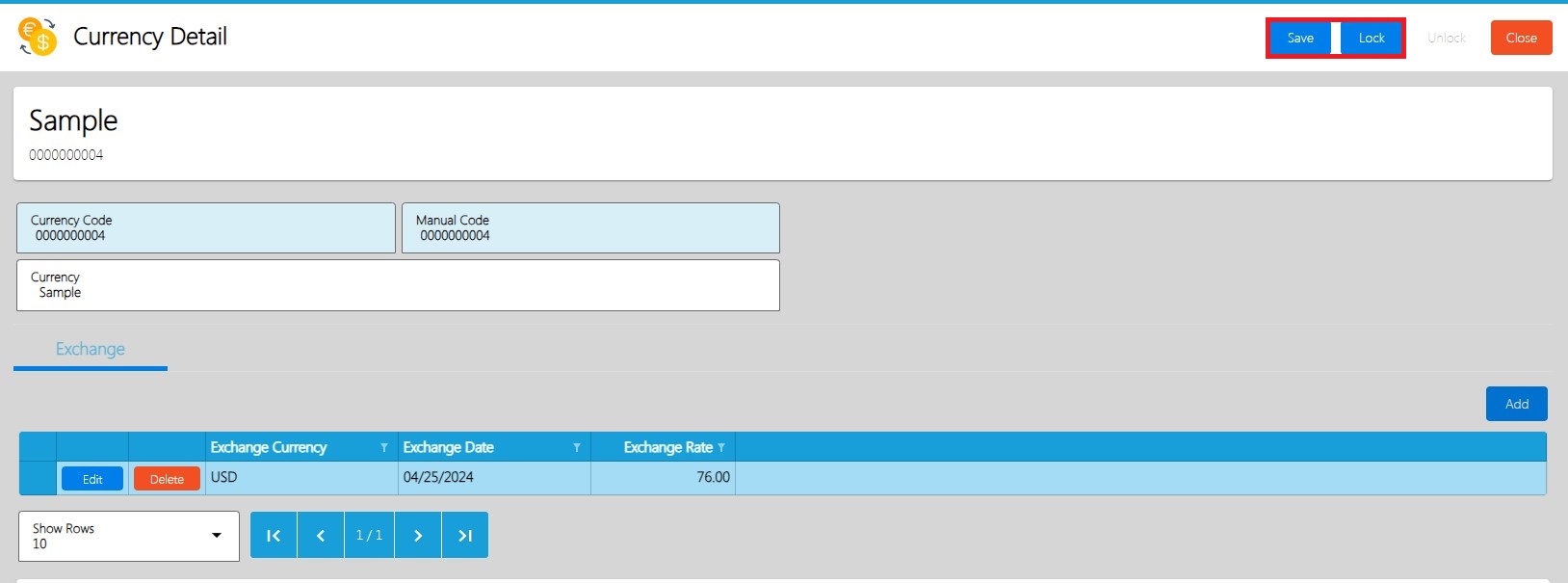
- Click Add, Under exchange tab.
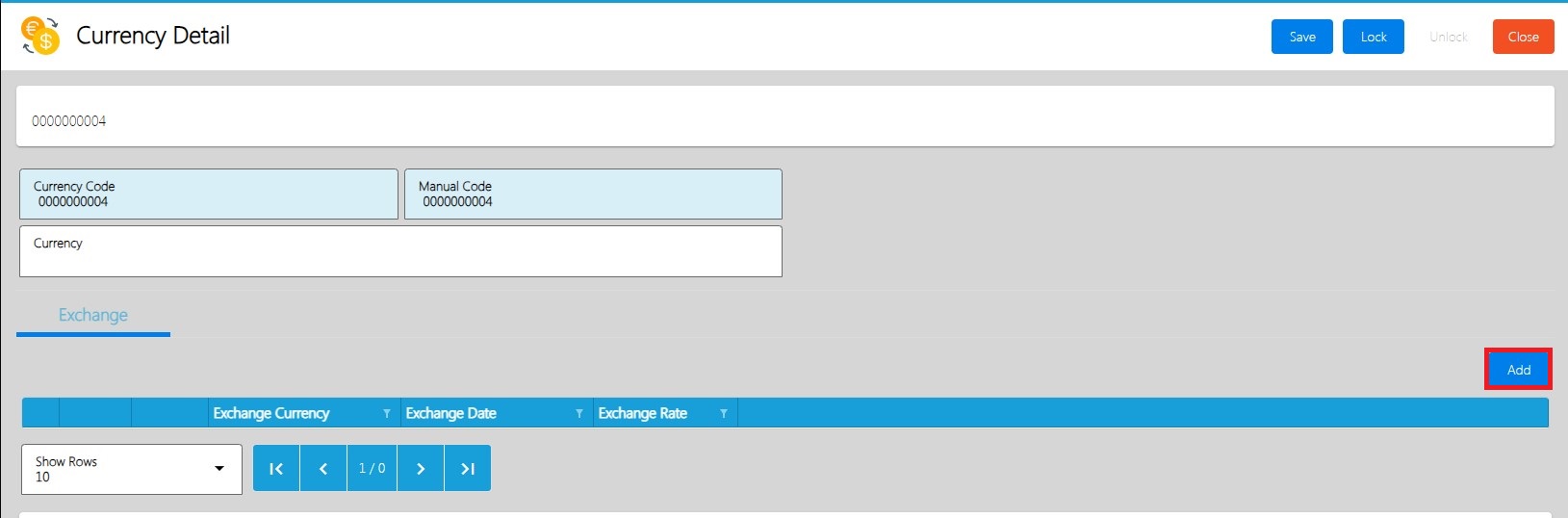
- An Add Currency Exchange window will appear
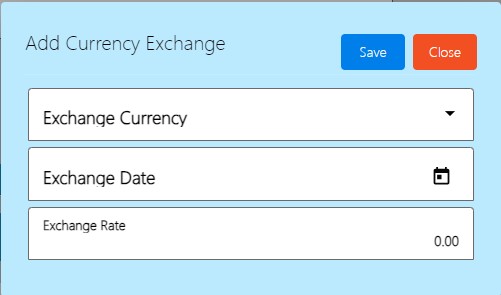
- Fill in the important fields with correct information like and click Save:
a. Exchange Currency
b. Exchange Date
c. Exchange Rate
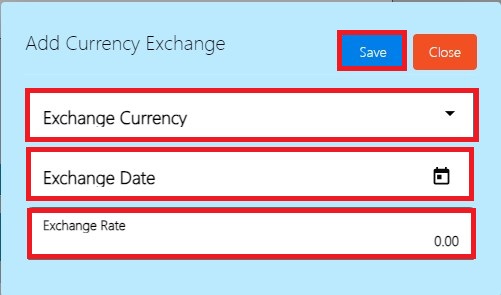
- Click Save and Lock and Close to go back to the Currency List